← All projects
Personal project
TeleDesk
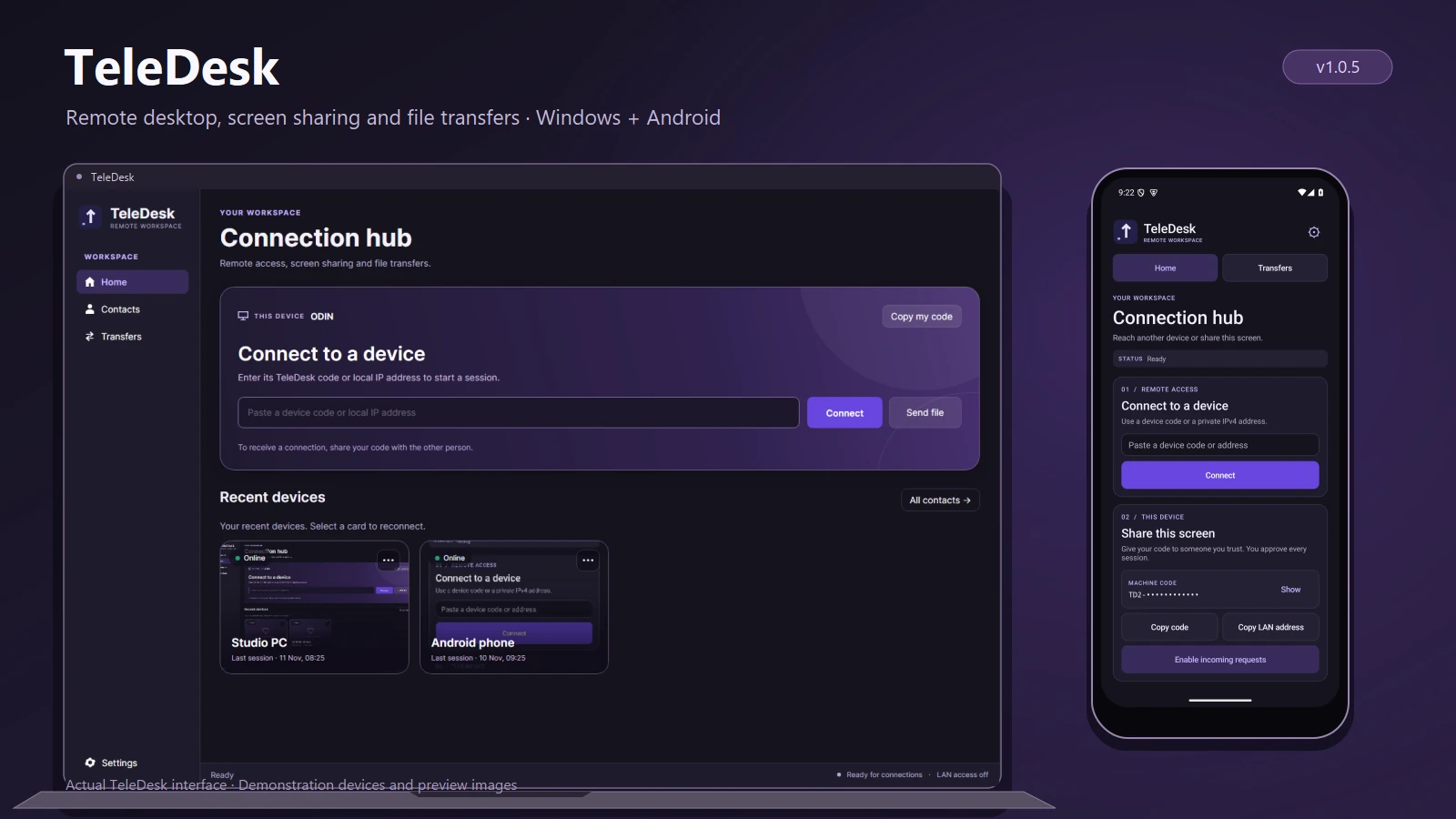
Remote access and file transfers between Windows PCs and Android devices. Connect from a device code or saved card, send a file without re-entering the address, and approve incoming access on the receiving device.
← All projects
Personal project
TeleDesk
Remote access and file transfers between Windows PCs and Android devices. Connect from a device code or saved card, send a file without re-entering the address, and approve incoming access on the receiving device.
ABOUT THE PROJECT
Remote desktop and file transfers
Remote access and file transfers between Windows PCs and Android devices. Connect from a device code or saved card, send a file without re-entering the address, and approve incoming access on the receiving device.
- My role
- Design & development
- Technology
- C# · .NET 10 · Avalonia · Android · WebRTC
- Project
- Personal project
FROM IDEA TO IMPLEMENTATION
The story behind the build
The problem
I wanted to reach my own PCs, help someone from my phone, or send a file without account setup and repeated device-code entry getting in the way.
The approach
I built shared certificate-pinned transports and separate Windows and Android interfaces. The Windows hub combines connection and file actions, saved devices use clickable preview cards, and access approval stays with the receiving device.
The result
TeleDesk 1.0.5 ships as a portable or per-user installed Windows EXE and a signed Android APK. It supports remote sessions, direct file transfers, saved Windows contacts, background availability checks and updates from Settings.
My contribution Design & development.
Inside TeleDesk
Explore the project imagery. Select an image to enlarge it.
TeleDesk 1.0.5 for Windows and Android
01 / 13RELEASES & CHANGES
Release history
Newest first. Select a version to read its notes.
1.1.0
Windows x64 · Android 12+
Device pairing, sharing and quick support
Adds encrypted relay fallback, resumable standalone file transfers, Android sharing and Windows Explorer actions, explicit clipboard delivery, QR pairing and single-use support invitations.
Connections and recovery
- Internet connections try the existing direct WebRTC path first, then fall back to the TeleDesk relay on kevlog.co.za if a direct route is unavailable. Local-network access remains available.
- Relay sessions use certificate-pinned TLS between the devices. The relay forwards encrypted session traffic and authenticates a hosting device before registering its fingerprint.
- Interrupted ordinary desktop sessions attempt to reconnect up to three times. A receiving device can require approval again. Closing a viewer or pressing Disconnect ends that session; single-use support invitations are not automatically reused.
- Connection failures explain whether to check incoming-request availability, connectivity, or the invitation.
Files and folders
- Standalone sending accepts multiple files on Windows and Android. Files are sent sequentially, with individual approval and progress.
- Android appears in the system share sheet for single files, multiple files, text and links. Choose TeleDesk in the source app, then select a saved recipient or enter a device code.
- Installed Windows copies register Send with TeleDesk in Explorer for files and folders. Existing installations register the action the first time the updated installed EXE starts. On Windows 11 the action may appear under Show more options.
- Send folder packages a selected directory into a ZIP archive. The receiver saves that archive; TeleDesk does not silently extract files into their filesystem. Android uses the system folder picker.
- The new standalone transfer protocol retains partial downloads, retries interrupted connections up to three times, and resumes from the receiver's confirmed offset. Failed outgoing transfers have a Retry / resume action. Reselecting the same file for the same recipient can resume a retained transfer after restarting the app.
- Resume approval is protected by a random transfer token. The receiver verifies the complete file's SHA-256 before saving it and reporting delivery. Existing destination files are preserved on Windows. A receiver can decline a transfer or cancel its receive operation.
Clipboard delivery
- Send copied text or a link directly to another device without opening a desktop session. Android can also forward text through its share sheet.
- The receiving person sees the text and approves replacing their clipboard. TeleDesk reads the sender's clipboard only when Send clipboard is selected; it does not continuously synchronize clipboards.
- Text is limited to 32 KB. Windows device menus include Send clipboard, and Android paired-device cards include Clipboard.
Pairing
- Create a pairing invitation with a QR code, copyable link and a 12-character code. Paste the link or code into Connect on the other device. Android includes an in-app camera scanner; Windows can open a QR image.
- Pairing requests verify that the requesting device possesses the private key matching its device code. After approval, both devices save each other. Windows allows a name to be chosen during pairing; Android saves the approved device name.
- Pairing does not enable unattended control. Screen access, incoming files and clipboard delivery still require their respective approvals.
Quick support
- Create an invitation for a helper without sharing a permanent device code. Each invitation expires after ten minutes and can be used once. Closing and restarting the inviting app invalidates its outstanding invitations.
- The invitation page opens TeleDesk using its registered link handler, offers the Windows and Android downloads, and explains how to paste an invitation into Connect. The Windows download continues to run as a portable EXE.
- A Windows invitation can limit a helper to view-only access or allow them to request keyboard and mouse control. The host approves the incoming session. Support sessions do not enable the in-session file channel or save the temporary code in recent devices.
Interface and compatibility
- Windows Home groups pairing, sending and support in three compact themed tiles, about 88 logical pixels high at the default size. Buttons, icons and hover states follow the purple application palette. Android sharing actions use the same accent colours.
- Version 1.1.0 is required on both devices for pairing, clipboard delivery and resumable standalone transfers. Legacy remote sessions and file channels remain available for compatibility.
- Android sharing remains view-only in the public APK and requires fresh Android screen-capture consent. Enable incoming requests and keep the Android app available to approve incoming requests.
- Folder archives and retained partial transfers need local storage. Resume after restarting depends on the original file remaining available and the receiving device retaining its partial file and save-location permission.
Release notes describe the implemented 1.1.0 Windows and Android builds. Protocol, interruption recovery, QR roundtrip and public relay checks were run before publication.
1.0.5
Windows, Android
Device cards, direct file actions and Settings
The selected device now carries through the connection and file workflows. Settings no longer occupy the bottom of the connection page.
Windows workspace
- Combined remote connection and this-device information into one connection panel. Copy my code stays beside the machine identity.
- Placed Send file beside Connect. It reuses the entered code or local IP and opens the file picker; selecting a file moves to Transfers for progress.
- Removed the duplicate contact list from Home. Recent devices use cards; Contacts has the saved-device grid.
- Selecting a device card connects. The options menu contains Send file, Edit contact, Remove contact and Clear screen preview. Sending from a card reuses its stored address.
- Saved the final composed remote screen as a local thumbnail. A partial screen update no longer becomes an incomplete preview. New devices show a placeholder rather than a fabricated image.
- Fixed full-card sizing, rounded clipping, continuous outlines, overflow-icon alignment and input/button alignment. Removed the large card tooltip that obscured neighbouring content.
Settings and status
- Moved appearance, local connection settings, installation/startup and version checks into Windows Settings.
- Moved connection readiness, LAN availability and task/update messages into the workspace status bar.
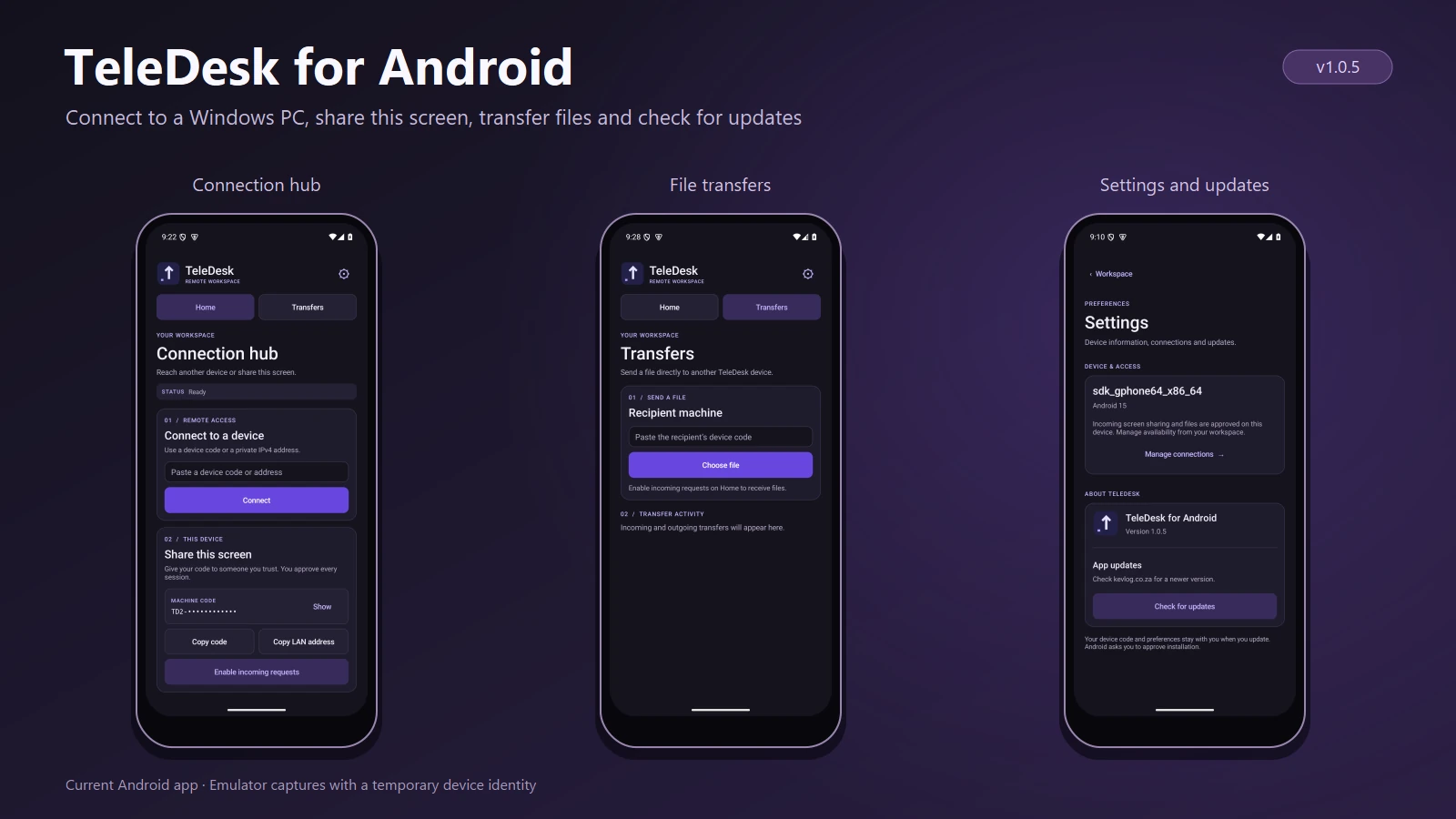
- Added Android Settings through the header gear. Device information and update status now have a dedicated screen, with download progress and a working Back route to the workspace.
Files and compatibility
- Added the local-network file-offer route on Windows and Android. First-time unpinned LAN addresses still require fingerprint verification; the receiver still approves a file and chooses its destination.
- Preserved machine identity, contacts and preferences across updates. Card previews are local images from previous sessions, not live monitoring.
Upgrade
Use Check for updates in 1.0.4, or install the current download manually. In 1.0.5, update checks are inside Settings. Android requires system installation approval. No relay fallback, clipboard synchronisation, multi-monitor selector or transfer resume is included in this release.
1.0.4
Windows, Android
Device availability and in-app update checks
Added online/offline/unknown device status and the first update flow for both platforms.
Added
- Background availability checks for saved Windows contacts and recent devices, with a dot and text label. Checks refresh about every 30 seconds and do not open a remote session or request screen access.
- Lightweight public-matchmaking ping/pong support in the shared Windows/Android listener. The private discovery service gained a presence query; local devices can also be checked through the existing LAN transport.
- Unknown status for failed checks or remote versions that cannot report presence, rather than presenting every failure as proof that the device is offline.
- Check for updates on Windows and Android, using the release manifest hosted on kevlog.co.za.
- Download verification against the expected byte count and SHA-256. Updates are restricted to the hosted HTTPS download source.
Update behaviour
- Installed Windows copies download a new EXE, close, replace the installed executable, retain the previous executable and restart. Portable copies save the new EXE for the user to launch.
- Android compares the package and signing certificate with the installed app, requests install-from-TeleDesk permission when needed, and opens the system installer. It cannot silently approve its own installation.
- Update installation is deferred while a remote session or transfer is active.
Limitations
The update buttons were initially placed among the connection controls; 1.0.5 moved them into Settings. Online status does not guarantee access approval or a usable direct network path. Install this or a later release manually once when coming from a version without update checking.
1.0.3
Android, Windows interoperability
Android remote workspace and file transfers
The Android app can control an approved Windows session, share its own screen in view-only mode and transfer files.
Android workflows
- Added the Android connection hub with device-code and private IPv4 entry, a masked local code, copy actions and incoming-request controls.
- Added the remote Windows viewer with tap/drag input, right-click, scrolling and US-layout text input after Windows approves control.
- Added incoming Android screen sharing. The phone approves the request and Android's capture prompt for each session; sharing can be stopped from the app, notification or system sharing indicator.
- Added standalone file sending and receiving through Android's document picker. Compatible desktop sessions can also carry files through their existing connection.
- Shared the certificate-pinned transport, machine-code protocol, matchmaking and session channels with the Windows client.
Distribution and constraints
The public APK targets Android 12 and later on arm64 and x86-64. Public phone sharing is view-only; the Accessibility-based touch-control variant is an internal build option, not a feature of this download. Protected Android content may be hidden by the system. The existing Windows host still captures the primary screen.
1.0.0
Windows
Windows remote desktop and file-transfer baseline
Permanent machine codes, approved desktop sessions, direct file transfers and per-user installation formed the initial recorded Windows build.
Remote access
- Connected Windows PCs by permanent machine code over direct WebRTC/STUN matchmaking, or by private IPv4 on a LAN.
- Pinned the transport to the receiver's certificate. First-time local addresses without a saved pin require fingerprint comparison.
- Let the receiver choose view-only or keyboard/mouse control. Verified saved contacts could be allowed unattended access while TeleDesk was running in the signed-in session.
- Saved named contacts, recent machines and appearance with the persistent machine identity.
Sessions and files
- Shared the primary monitor, supported fullscreen viewing with F11 and exposed disconnect/file controls from the viewer.
- Sent changed screen regions when appropriate, adapted JPEG quality for larger changes and skipped unchanged frames.
- Sent files directly or through compatible active sessions. The receiver approved the offer and selected the destination; both sides displayed size, progress and throughput.
- Used 64-bit file counters. Cancelled partial downloads were removed, and a new attempt started again from the beginning.
Windows distribution
The self-contained x64 EXE ran portably or installed for the current account, added a Start menu shortcut and optionally started in the notification area at sign-in. Closing the main window hid it; Quit TeleDesk stopped it. Direct network failures were reported rather than routed through a relay.
THE MAKING OF TELEDESK
Technical notes
Windows: enter a device code or local IP in Connection hub. Connect opens a remote session; Send file beside it opens the file picker using the same address.
Saved devices: select a card to connect. Its options menu offers Send file without re-entering a code, contact editing/removal and Clear screen preview. Recent devices appear on Home; saved contacts have their own page.
Device previews are stored on the viewing PC after a session and show the last received screen, not a live background feed. New devices have a placeholder. Online/offline/unknown status refreshes separately; online does not guarantee permission or a working connection.
Android to Windows: paste the PC code, approve the session on Windows and use the Android viewer to tap, drag, right-click, scroll or type. Windows can grant view-only or keyboard/mouse control.
Windows to Android: enable incoming requests on the phone, connect to its code, choose View only and approve Android’s system screen-sharing prompt. The public APK does not provide Android touch control or unattended Android sharing.
File transfers: the recipient approves the request and chooses where to save. Both sides show size and progress; Windows shows throughput. Compatible active sessions can carry files over their existing connection. Cancelled transfers restart from the beginning.
Settings: Windows groups appearance, connection settings, installation/startup and version/update information. Android opens its Settings page from the header gear. Windows connection readiness and LAN status sit in the bottom workspace status bar.
Updates: both apps check the release manifest on kevlog.co.za and verify download size and SHA-256. Installed Windows copies close, replace the EXE and restart. Android also checks the package and signing certificate, then opens the system installer for approval.
Networking: internet sessions use WebRTC/STUN to attempt a direct path; restrictive networks can prevent a session because relay fallback is not implemented. Local connections use private IPv4 and certificate fingerprint verification.
Windows access: the EXE can run portably or install for your account, start at sign-in and keep running in the tray. Verified contacts can be granted unattended access while TeleDesk is running in the signed-in Windows session. Screen capture currently uses the primary monitor.
The gallery uses current app views with demonstration devices and transfer data. Preview backgrounds are seeded from captured TeleDesk screens; Android images are emulator captures. The mockups frame those captures rather than inventing an interface.
Windows contacts show online, offline or unknown status with automatic background checks. Update both devices for internet presence checks.
Use Check for updates on Windows or Android to download updates from kevlog.co.za. Installed Windows copies restart to apply updates; Android opens its installer for approval.
START A CONVERSATION
Have a problem worth solving?
Let’s talk about your idea, your team, or the work you’ve seen here.
More to explore
Personal projectAirTrack
AirTrack
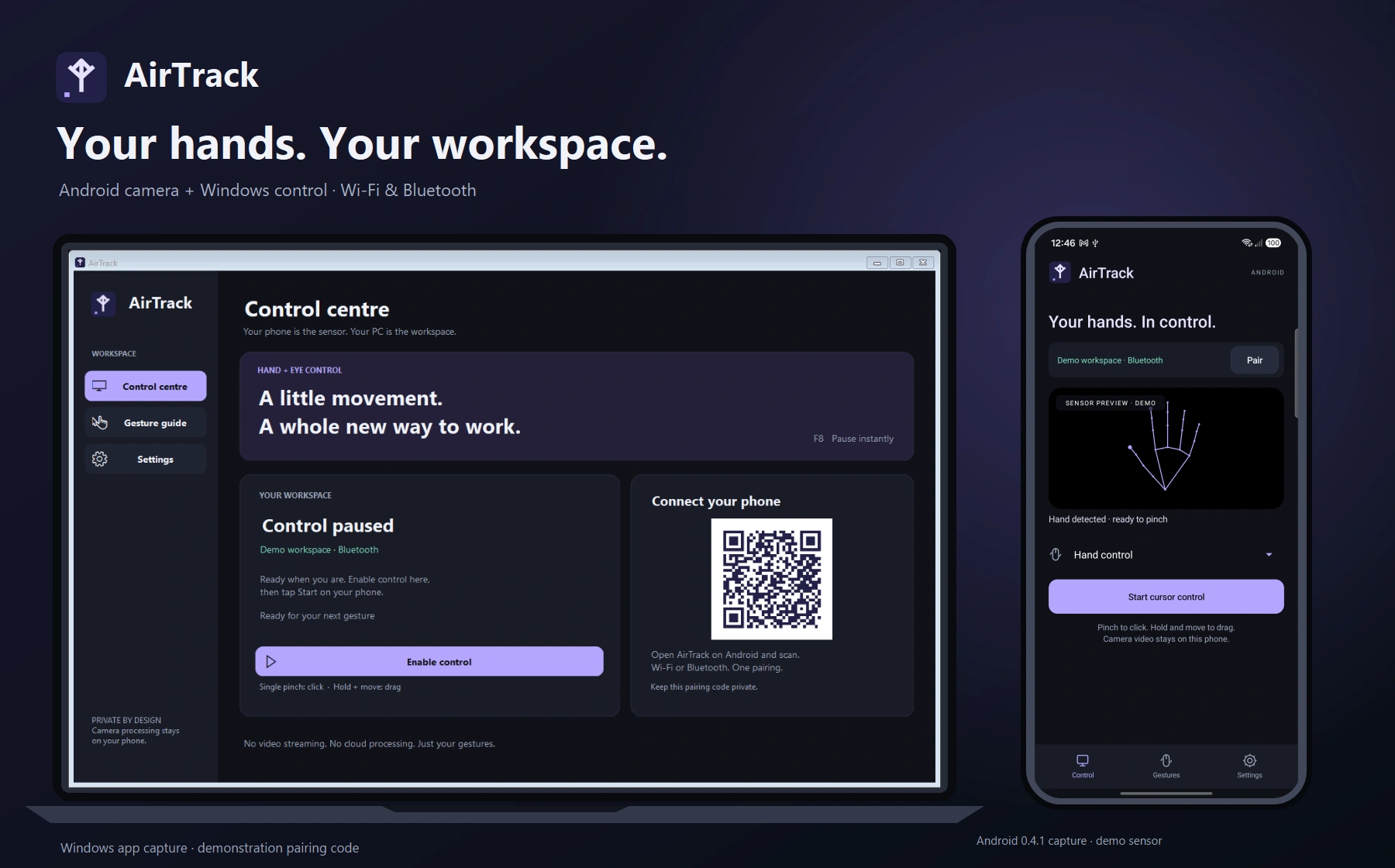
Hand gestures for your Windows workspace
Personal projectRune
Rune
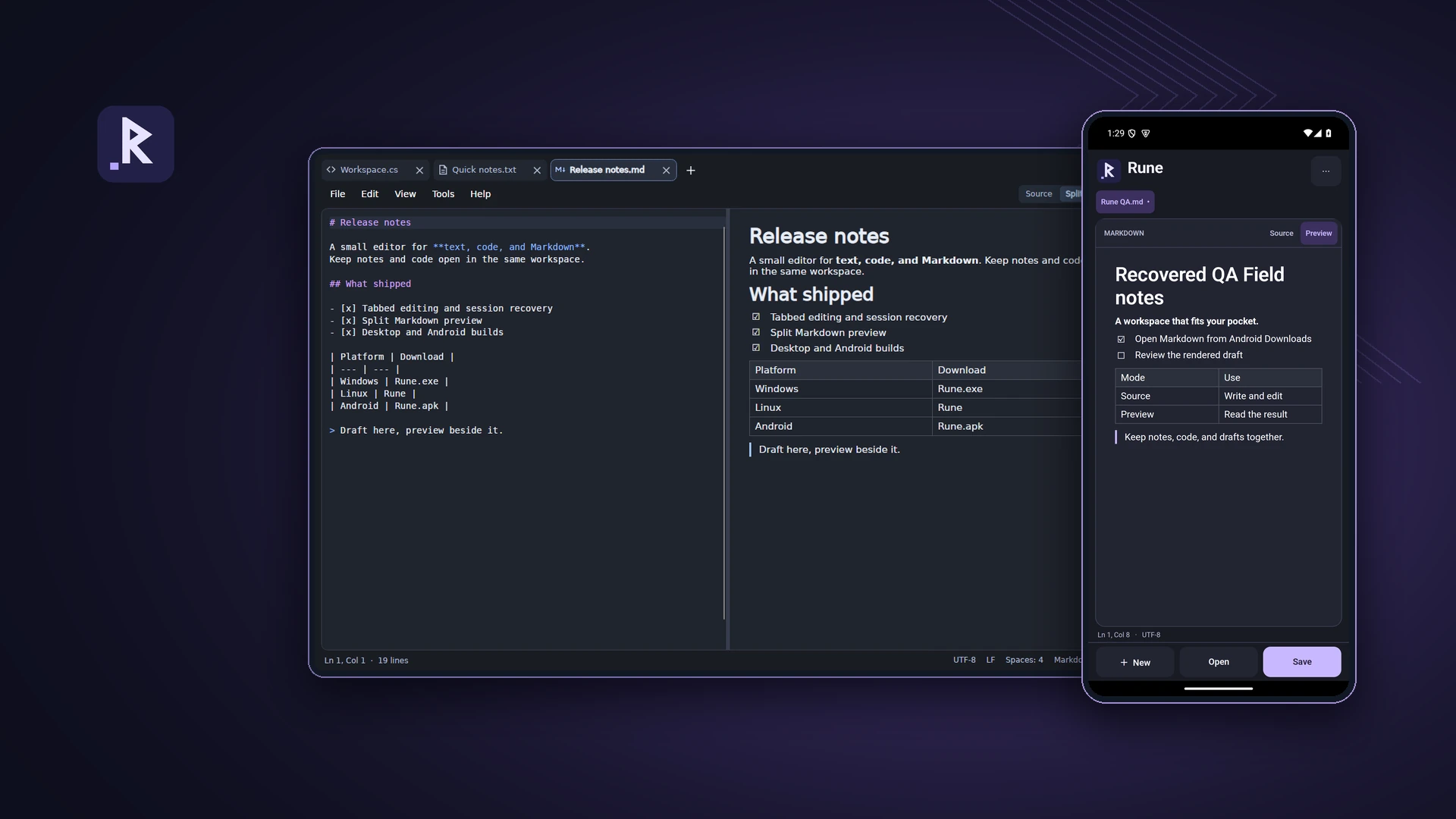
A text, code and Markdown editor for desktop and Android
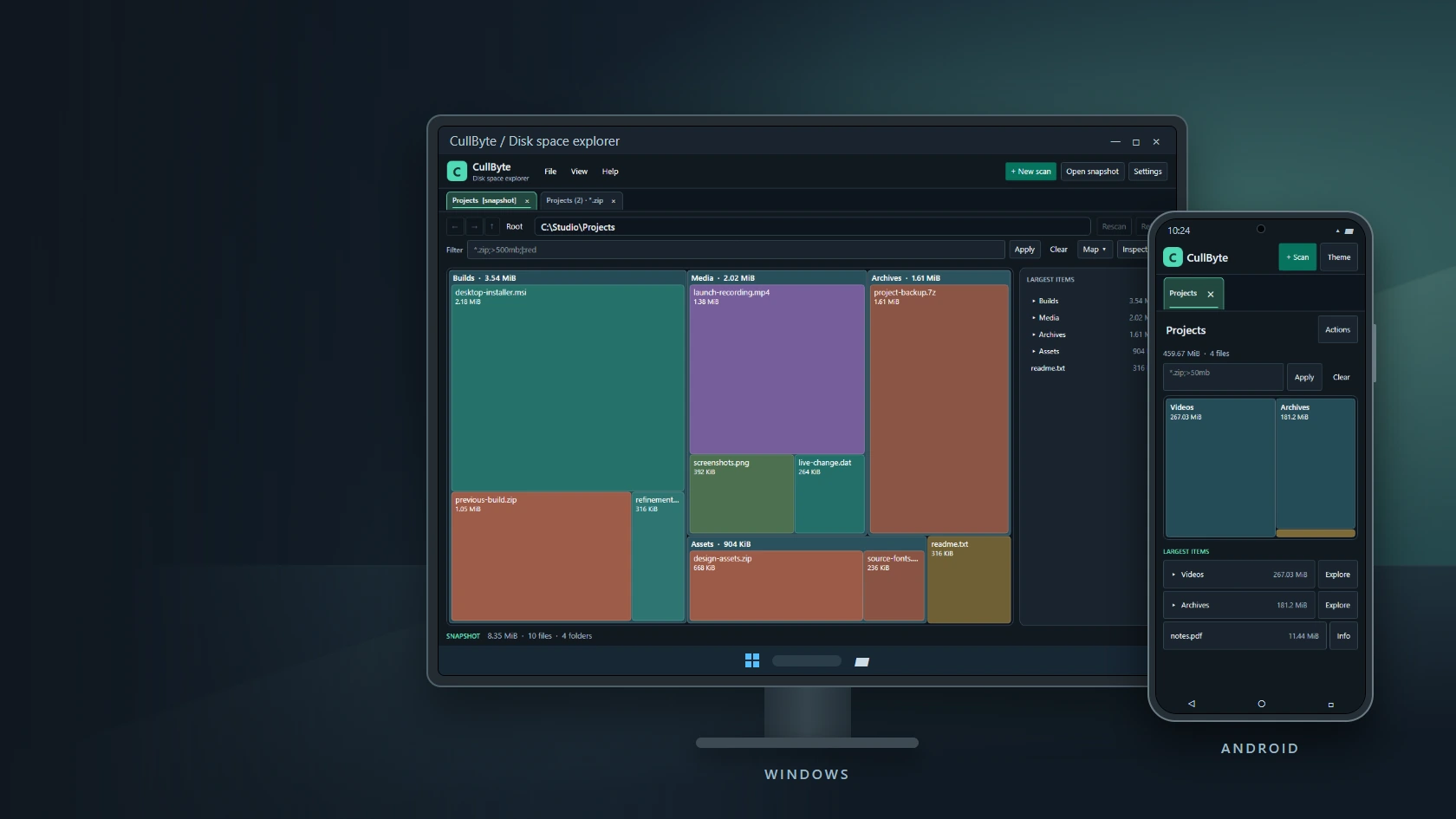
Personal projectCullByte
CullByte
Disk space explorer for Windows and Android
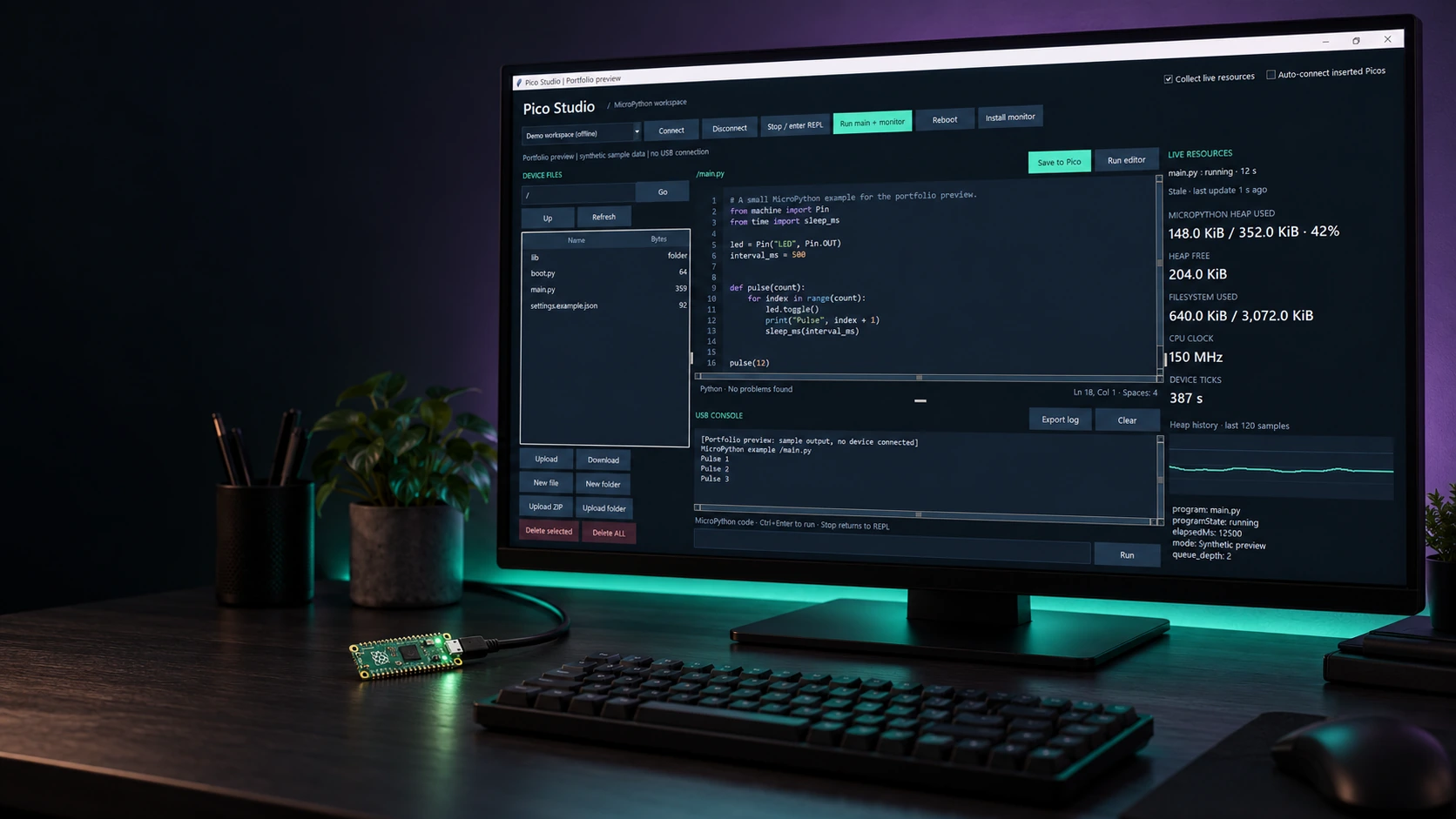
Personal projectPico Studio
Pico Studio
A desktop workspace for MicroPython
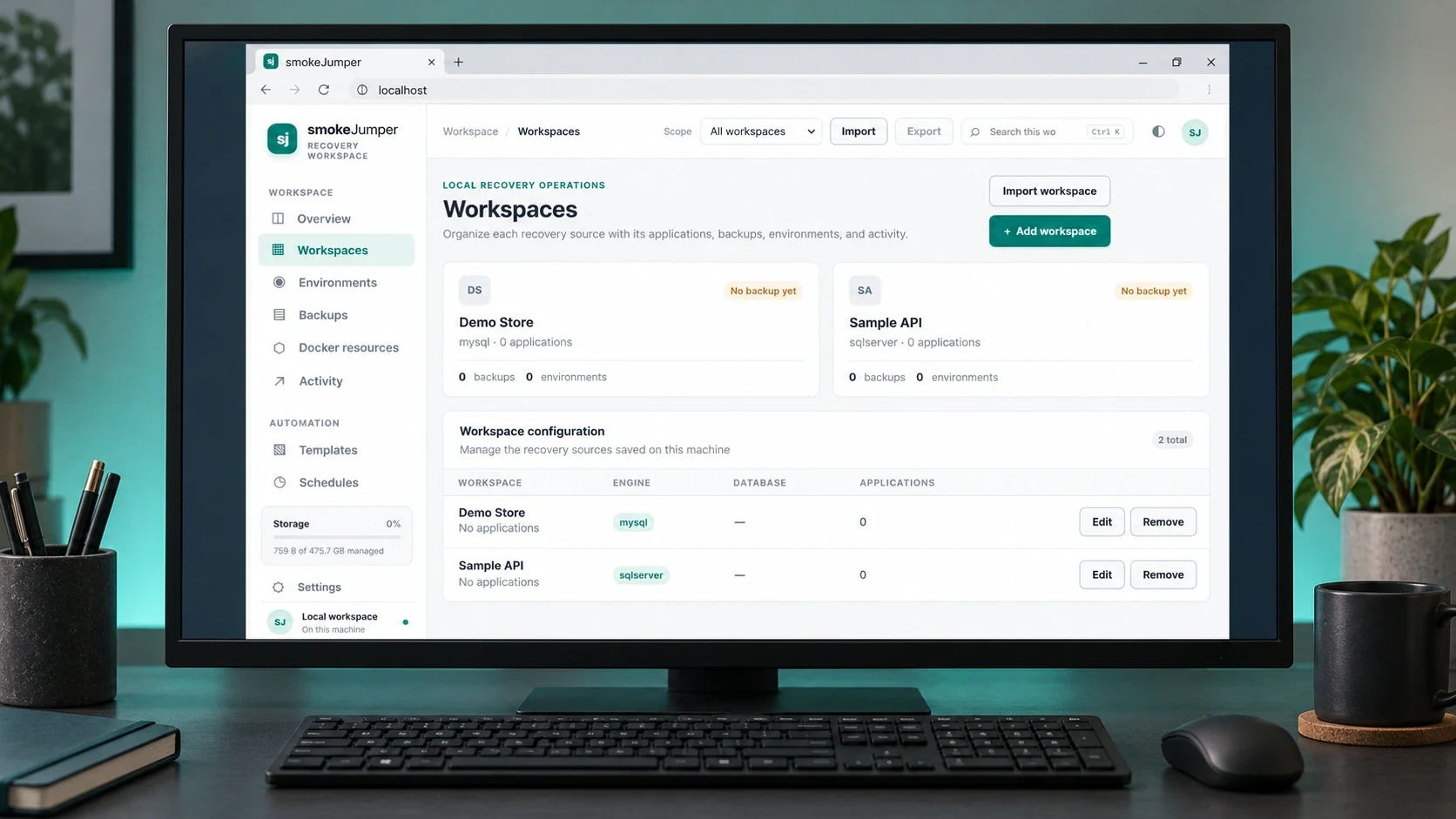
Personal projectSmoke Jumper
Smoke Jumper
Apps, databases and Docker environments on Windows
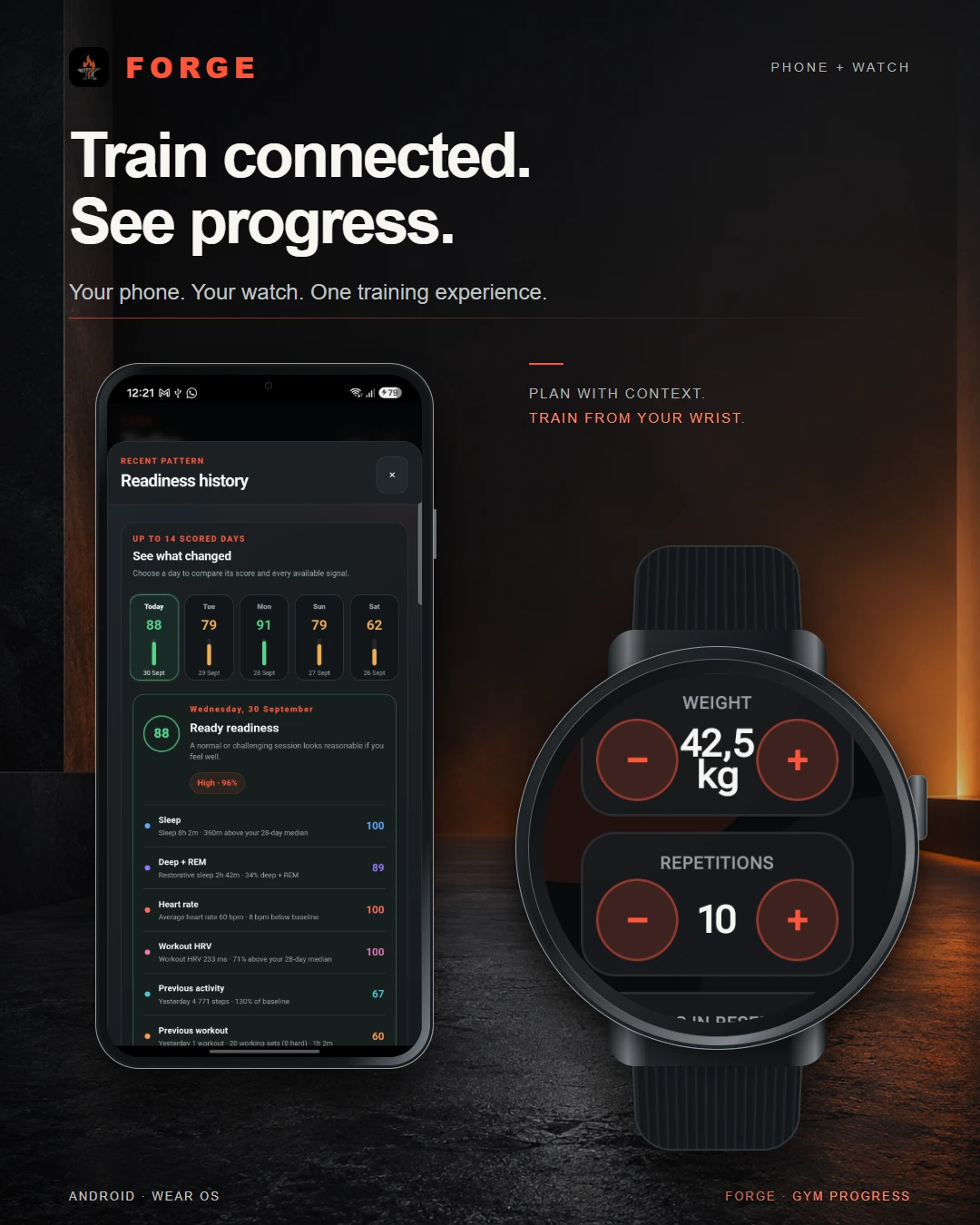
Personal projectForge
Forge
Training, recovery & progress
Dynamic Data TechnologiesTwenty4Hire
Twenty4Hire
AI-assisted recruitment platform
The CodesmithsK2.Maui
K2.Maui
Android client for OpenClaw
Dynamic Data TechnologiesMeetapp
Meetapp
Meeting preferences & group dynamics