← All projects
Personal project
AirTrack
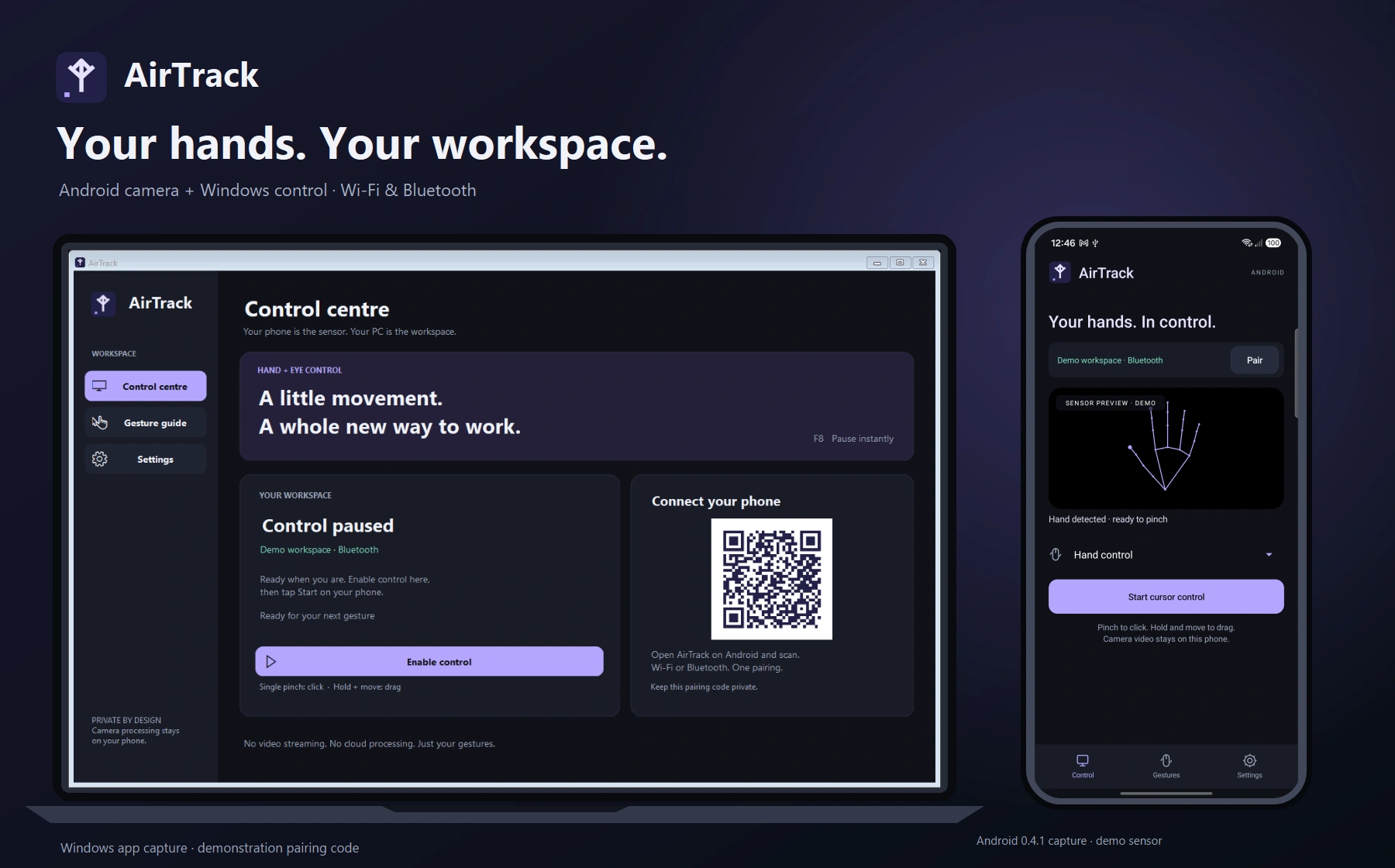
Use an Android camera to move, click, drag, scroll and control Windows with hand gestures. Hold thumb and middle finger to dictate into a focused text input. Pair by QR over Wi-Fi or Bluetooth.
ABOUT THE PROJECT
Hand gestures for your Windows workspace
Use an Android camera to move, click, drag, scroll and control Windows with hand gestures. Hold thumb and middle finger to dictate into a focused text input. Pair by QR over Wi-Fi or Bluetooth.
- My role
- Design & development
- Technology
- Kotlin · CameraX · MediaPipe · C# · .NET 10 · Windows native input
- Project
- Personal project
FROM IDEA TO IMPLEMENTATION
The story behind the build
The problem
I wanted a camera-based controller that could work across my Windows desktop without streaming video or requiring a new camera, account or repeated calibration.
The approach
An Android companion tracks hands locally, then sends cursor movements and acknowledged gesture commands over certificate-pinned Wi-Fi or paired Bluetooth. Windows applies native mouse, window and supported touchscreen actions.
The result
AirTrack 0.4.6 fixes dictation in custom editors including Rune, selects the pointed-at input before listening, and shows the actual Windows delivery result on Android.
My contribution Design & development.
Inside AirTrack
Explore the project imagery. Select an image to enlarge it.
AirTrack for Windows and Android
01 / 06RELEASES & CHANGES
Release history
Newest first. Select a version to read its notes.
0.4.6
Windows x64 · Android
Locked dictation target and exclusive gesture ownership
Uses the same locked target and selected-monitor click path as normal clicking. A middle-finger hold owns input exclusively until release and cannot retrigger when the index finger moves.
Dictation selection correction
Selection now carries the phone’s locked target coordinates and uses exactly the normal click path on the selected display, rather than reading the PC cursor separately. Index-finger movement cannot release or restart a held middle pinch. Tracking reset requires the middle pinch to reopen before another selection. Explicit dictation ownership in movement frames suppresses window, touch, menu, lock and competing click gestures while dictating.
Custom editor insertion
Removed the accessibility edit/value-pattern requirement that rejected Rune even when its editor had keyboard focus. Dictation now uses native Windows foreground and thread keyboard focus for Unicode typing, without editor-specific adapters.
Select and dictate
Point at an input and hold thumb and middle finger. Windows clicks the target once, lets it acquire focus, then acknowledges readiness before Android starts listening. Release inserts the phrase. The phone displays the actual insertion acknowledgement or rejection on Control instead of merely saying the transcript was sent.
Validation
A native integration check using the same Avalonia and AvaloniaEdit versions as Rune confirms actual Unicode text receipt and replacement of a selected range, plus automatic click-to-select before typing. 90 Windows logic/protocol/update checks and 58 Android unit tests pass; release build and Android lint pass. Recognition on the physical phone was not re-run; its existing configured English speech service is unchanged.
Updating
Update both platforms. Windows 0.4.4 can download, verify, install and restart into this release through Settings. Android uses the usual APK install prompt.
0.4.5
Windows x64 · Android
Dictation in Rune and automatic input selection
Fixes custom-editor insertion, selects the pointed-at input before listening, and displays the Windows insertion result directly on the phone.
Custom editor insertion
Removed the accessibility edit/value-pattern requirement that rejected Rune even when its editor had keyboard focus. Dictation now uses native Windows foreground and thread keyboard focus for Unicode typing, without editor-specific adapters.
Select and dictate
Point at an input and hold thumb and middle finger. Windows clicks the target once, lets it acquire focus, then acknowledges readiness before Android starts listening. Release inserts the phrase. The phone displays the actual insertion acknowledgement or rejection on Control instead of merely saying the transcript was sent.
Validation
A native integration check using the same Avalonia and AvaloniaEdit versions as Rune confirms actual Unicode text receipt and replacement of a selected range, plus automatic click-to-select before typing. 90 Windows logic/protocol/update checks and 55 Android unit tests pass; release build and Android lint pass. Recognition on the physical phone was not re-run; its existing configured English speech service is unchanged.
Updating
Update both platforms. Windows 0.4.4 can download, verify, install and restart into this release through Settings. Android uses the usual APK install prompt.
0.4.4
Windows x64 · Android
English speech startup fix and Windows in-app updates
Uses the configured Android speech service with explicit English, adds verified Windows download/install/restart and rollback, and fixes tracking interruption and diagnostic pause issues.
English dictation startup
Removed forced selection of the separate on-device recognizer, which could exist without supporting the requested language and fail immediately with error 12. AirTrack now uses the configured system speech service directly and explicitly requests English (en-US), without a fallback retry. Provider/network availability still depends on the phone.
Windows updates
Download & install update downloads the release in the app, verifies the exact byte count and SHA-256, stages a helper, closes the app, replaces its executable, and restarts it. Download can be cancelled. Failed verification leaves the installed executable untouched; a failed restart launch rolls back. Install this version manually once to enable the updater. Android retains the normal APK installation flow.
Review fixes
Reused camera conversion storage and corrected padded-row handling while respecting MediaPipe image ownership. Skip conversion for inactive and throttled scanning frames. Resynchronize the cursor on resume; cancel dictation on rotation or hand changes; release a held drag even on invalid landmarks after tracking loss. Native touch cancels on foreground change or rejected keepalive injection. F8 now cancels diagnostics without restoring input afterward. Named-pipe commands handle fragmented reads, and cancelled window gestures clear stale click suppression.
Validation
90 Windows checks and 52 Android unit tests pass; Android release build and lint pass. Download integrity, cancellation, atomic replacement, rollback, Unicode transport, focus/session rejection and camera row packing have regression coverage. Physical speech, gesture accuracy, latency, power and target-application compatibility still require device testing. Eye control remains experimental.
0.4.3
Windows x64 · Android
Hold to dictate into the focused input
Thumb–middle-finger hold starts speech recognition on the phone. Release inserts the final transcript into the same focused Windows input.
Gesture dictation
Hold thumb and middle finger together for 350 ms, speak into the phone, and release to insert. Cursor gestures pause while dictating. Partial recognition appears on the phone; only the final transcript is sent over the paired encrypted connection.
Focused insertion
Windows captures the focused editable control when dictation starts and checks that the same control still has focus before inserting Unicode text at the caret. Selected text is replaced as normal typing does. Stale sessions, pause, tracking loss and disconnect reject pending results. Acknowledgements and duplicate suppression prevent retrying a transcript from typing it twice.
Recognition and limits
On-device Android recognition is preferred when available. Otherwise the installed speech provider may use online processing. One phrase per hold, with a 60-second timeout and 2,000-character limit. Inaccessible, password and elevated inputs can reject insertion. A recognition provider and microphone permission are required.
Validation
74 Windows logic/protocol checks and 48 Android unit tests pass. Android release build and lint pass. Physical microphone, gesture timing and target-application insertion still need hands-on validation.
0.4.2
Windows x64 · Android
Saved computers, system tray and automatic update checks
Saved Android computer profiles with custom names, Close-to-tray on Windows, optional Windows startup, automatic launch update checks and a hidden installation shortcut once installed. A focused control centre, gesture guide and Settings on both platforms. Standard interface icons, a new runic app icon and update checks through Kevlog.
Saved computers, tray and launch updates
Android can save any number of named PC profiles and switches one connection at a time. Windows Close hides the window to the tray; Quit stops the process. Start with Windows is available during installation and afterward. Both platforms check for updates on each launch and expose newer downloads in Settings. Precision remains enabled by default. The sidebar installation shortcut disappears once installed.
Installation
Install on this PC in Windows Settings installs for the current account, adds Start menu and optional desktop shortcuts, and registers an Apps & Features uninstaller. Portable use remains available.
Interface
Rebuilt the Windows workspace with sidebar navigation, a focused control dashboard, a separate gesture guide and grouped Settings. Android uses bottom navigation, a dedicated camera control screen and separate gesture and Settings pages. Decorative runes were removed from controls; the app icon retains the rune identity.
Distribution and updates
Self-contained Windows EXE and signed, non-debuggable Android APK. Both Settings pages can check the published HTTPS update feed and offer a newer download. Existing gesture processing and transport acknowledgement behavior are retained.
Validation
56 Windows logic/protocol/update checks and 43 Android unit tests pass. Android release lint completes without errors. Public artwork identifies demonstration data and any design mockups; it is not a claim of measured tracking accuracy.
0.4.1
Windows x64 · Android
Per-user Windows installation and device screenshots
Windows installation with shortcuts and an Apps & Features entry, plus physical-device Android captures. A focused control centre, gesture guide and Settings on both platforms. Standard interface icons, a new runic app icon and manual update checks through Kevlog.
Installation
Install on this PC in Windows Settings installs for the current account, adds Start menu and optional desktop shortcuts, and registers an Apps & Features uninstaller. Portable use remains available.
Interface
Rebuilt the Windows workspace with sidebar navigation, a focused control dashboard, a separate gesture guide and grouped Settings. Android uses bottom navigation, a dedicated camera control screen and separate gesture and Settings pages. Decorative runes were removed from controls; the app icon retains the rune identity.
Distribution and updates
Self-contained Windows EXE and signed, non-debuggable Android APK. Both Settings pages can check the published HTTPS update feed and offer a newer download. Existing gesture processing and transport acknowledgement behavior are retained.
Validation
56 Windows logic/protocol/update checks and 38 Android unit tests pass. Android release lint completes without errors. Public artwork identifies demonstration data and any design mockups; it is not a claim of measured tracking accuracy.
0.4.0
Windows x64 · Android
New interfaces, Settings and public preview downloads
A focused control centre, gesture guide and Settings on both platforms. Standard interface icons, a new runic app icon and manual update checks through Kevlog.
Interface
Rebuilt the Windows workspace with sidebar navigation, a focused control dashboard, a separate gesture guide and grouped Settings. Android uses bottom navigation, a dedicated camera control screen and separate gesture and Settings pages. Decorative runes were removed from controls; the app icon retains the rune identity.
Distribution and updates
Self-contained Windows EXE and signed, non-debuggable Android APK. Both Settings pages can check the published HTTPS update feed and offer a newer download. Existing gesture processing and transport acknowledgement behavior are retained.
Validation
56 Windows logic/protocol/update checks and 38 Android unit tests pass. Android release lint completes without errors. Public artwork identifies demonstration data and any design mockups; it is not a claim of measured tracking accuracy.
THE MAKING OF AIRTRACK
Technical notes
Speech to text: update both apps to 0.4.6. Point the Windows cursor at an input, hold thumb and middle finger together for 350 ms while keeping thumb and index apart, wait for Listening, speak, then release. Windows selects the pointed-at input automatically before acknowledging readiness. Custom editors such as Rune are supported through native keyboard focus rather than a requirement for accessibility edit/value metadata. Android displays the actual Windows insertion acknowledgement or rejection on the Control page. Speech uses the configured Android service directly with explicit English (en-US), without a fallback retry; the provider may process audio online.
Windows updates: install 0.4.4 manually once. Future updates use Settings → App updates → Download & install update, with size/checksum verification, download cancellation, executable replacement and restart. A failed restart launch restores the previous executable. Android updates continue through the normal APK installation prompt.
Windows updates: install 0.4.4 manually once. Future updates use Settings → App updates → Download & install update, with size/checksum verification, download cancellation, executable replacement and restart. A failed restart launch restores the previous executable. Android updates continue through the normal APK installation prompt.
Windows updates: install 0.4.4 manually once. Future updates use Settings → App updates → Download & install update, with size/checksum verification, download cancellation, executable replacement and restart. A failed restart launch restores the previous executable. Android updates continue through the normal APK installation prompt.
Windows Settings → Installation → Install on this PC copies the portable EXE into your user profile, creates a Start menu shortcut and an optional desktop shortcut, and registers an Apps & Features uninstaller. No administrator access is required.
Install both downloads. Run the Windows EXE, open AirTrack on Android and tap Pair to scan the PC’s QR code. Enable control on the PC and tap Start cursor control on the phone. F8 pauses PC input immediately.
Choose any camera exposed by Android in Settings → Camera & movement. Settings also includes mirror movement, pinch sensitivity, connection choice, optional movement bounds and input diagnostics.
Move your palm to aim. Pinch and release to click; two quick pinches double-click. Hold a pinch and move to drag; release to drop. Three raised fingers scroll.
Pinch both hands and spread over touch-capable content to zoom. Start on a resizable title bar to resize instead. Grab a blank title bar to move a window; throw sideways and release to snap.
While grabbing a title bar, pull away from a camera near the monitor facing you to maximize; push toward it to minimize. This uses apparent palm size, so camera placement and hand orientation affect recognition.
Hold an open palm still for 1.4 seconds to open the radial menu. Point and pinch to select precision, window or pause actions. Small controls engage automatic cursor precision. Peace and zap signs held for 2 seconds lock Windows.
Both apps automatically check the HTTPS Kevlog release manifest every time they launch, without blocking tracking. Settings also offers Check for updates. A newer release shows an update indicator and download link; download and installation remain user initiated.
The Android computer chooser keeps any number of saved, encrypted PC profiles with custom names. Tap the computer name on Control or use Settings → Connection → Saved computers. Pair each PC once; selecting a different profile closes the old connection and pauses input before connecting to the selected PC. Rescanning updates that PC’s credentials without losing its custom name.
Closing the Windows window keeps AirTrack running in the system tray. Double-click the tray icon to reopen; its menu provides Open, Enable/Pause, Settings and Quit. Settings → Installation includes optional Start with Windows, opening in the tray. This is opt-in and needs no administrator access.
This is preview software. Eye control is experimental. Touch zoom depends on the target app accepting Windows touch; desktop and taskbar are excluded. Custom title bars and elevated applications may limit window or input actions.
No camera video is sent to the PC or cloud. Keep the pairing QR private. The public gallery uses demonstration data; the Android artwork is labelled as a layout mockup where a physical-device capture is unavailable.
START A CONVERSATION
Have a problem worth solving?
Let’s talk about your idea, your team, or the work you’ve seen here.
More to explore
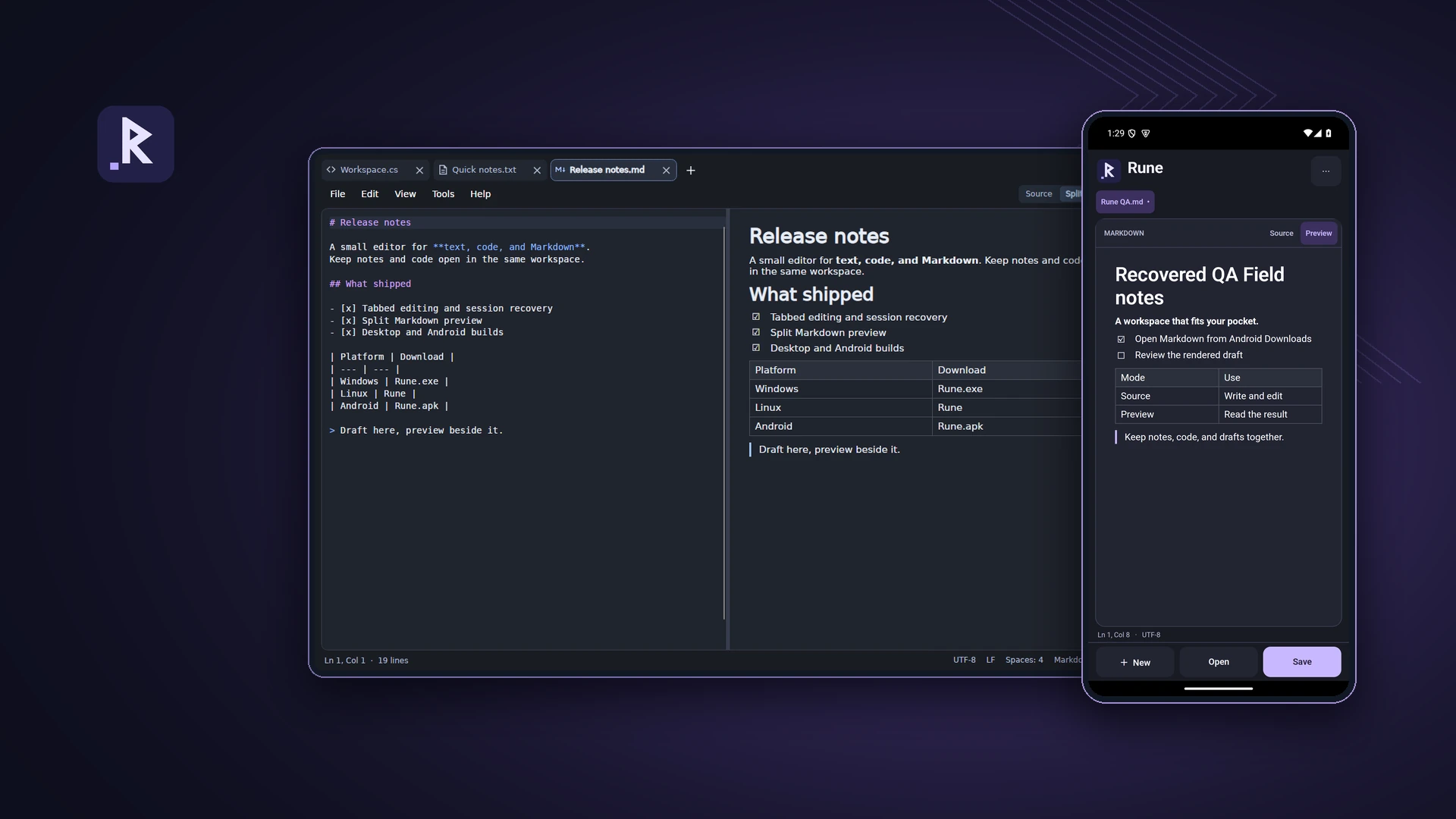
Personal projectRune
Rune
A text, code and Markdown editor for desktop and Android
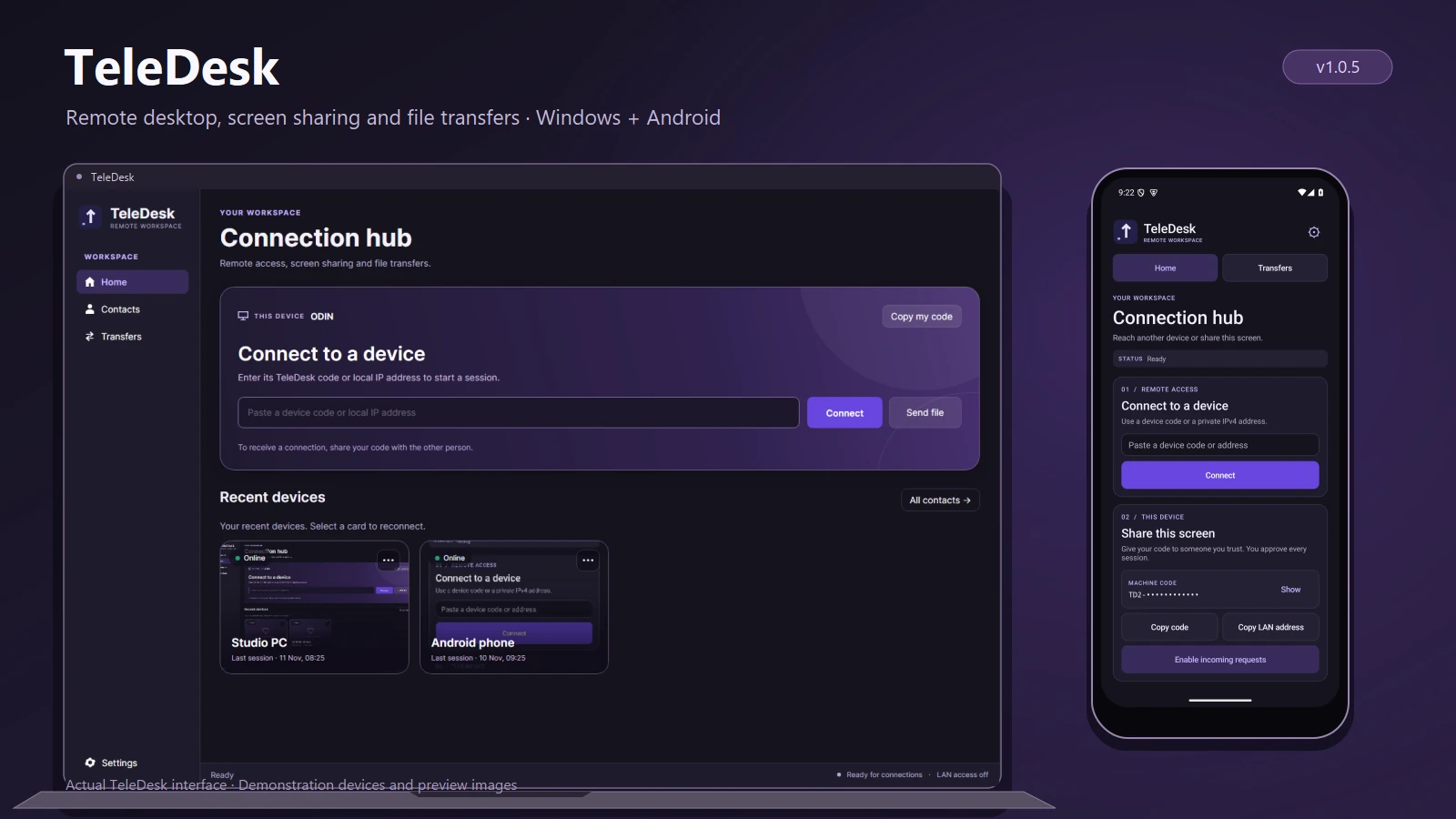
Personal projectTeleDesk
TeleDesk
Remote desktop and file transfers
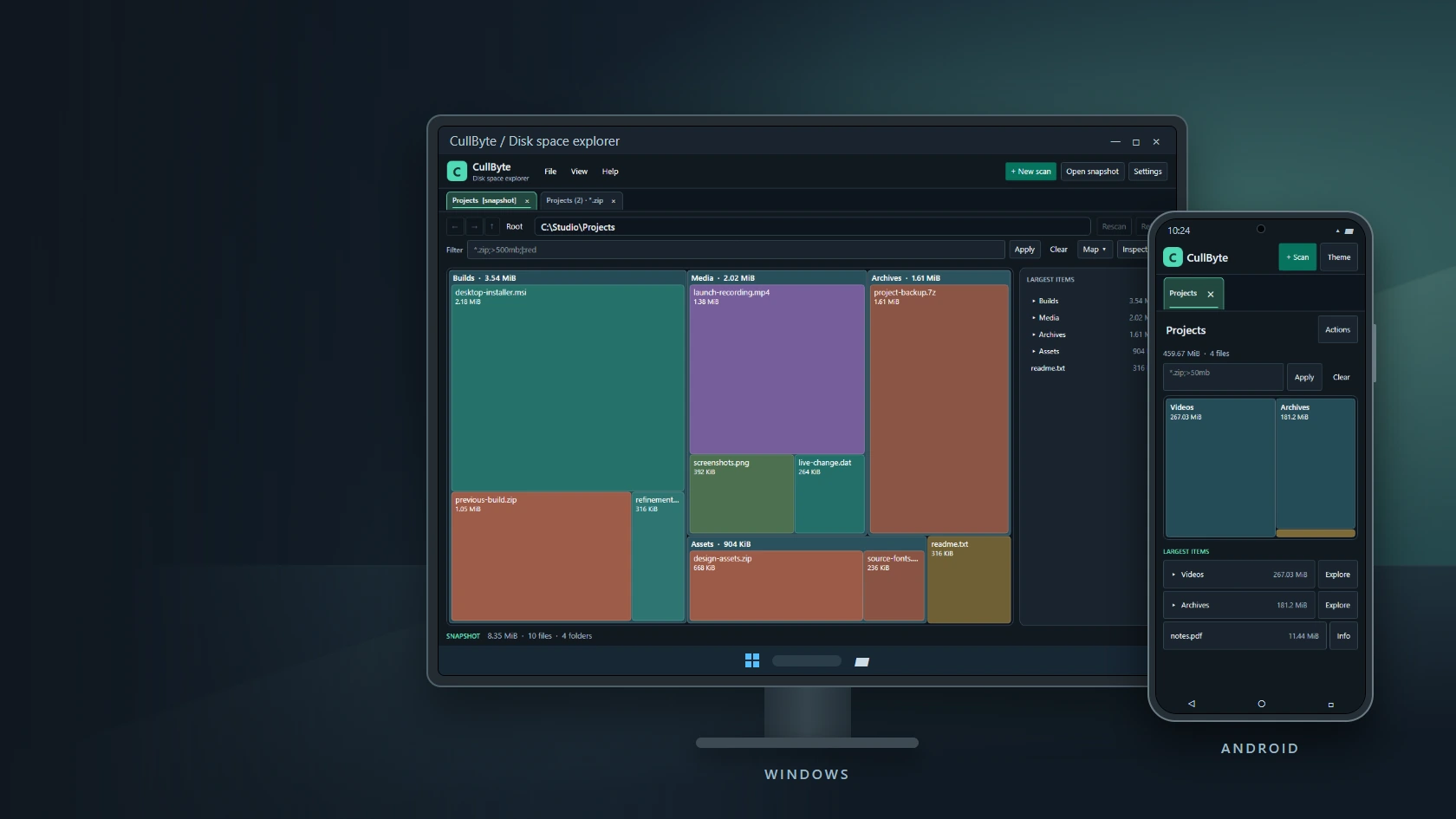
Personal projectCullByte
CullByte
Disk space explorer for Windows and Android
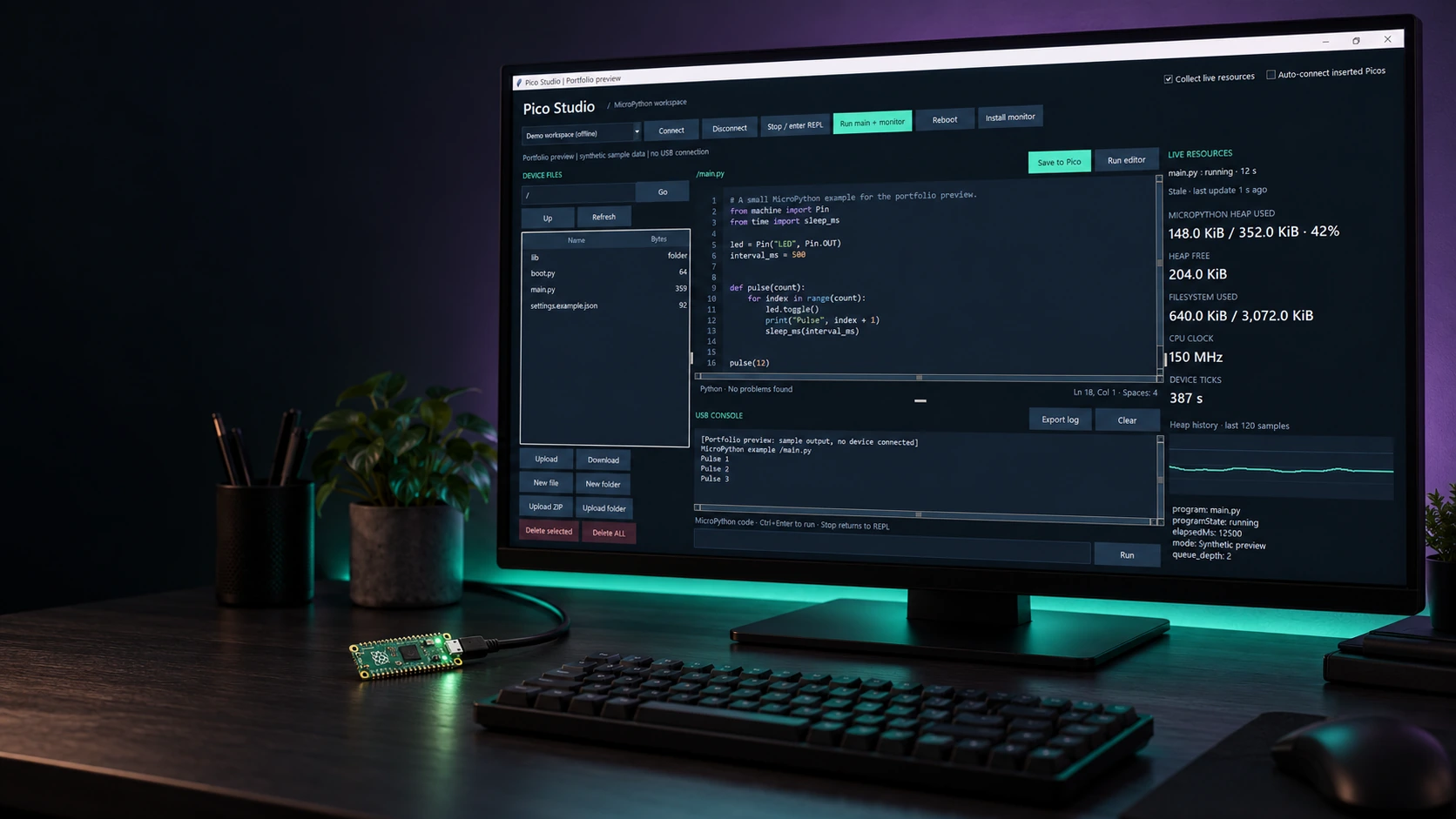
Personal projectPico Studio
Pico Studio
A desktop workspace for MicroPython
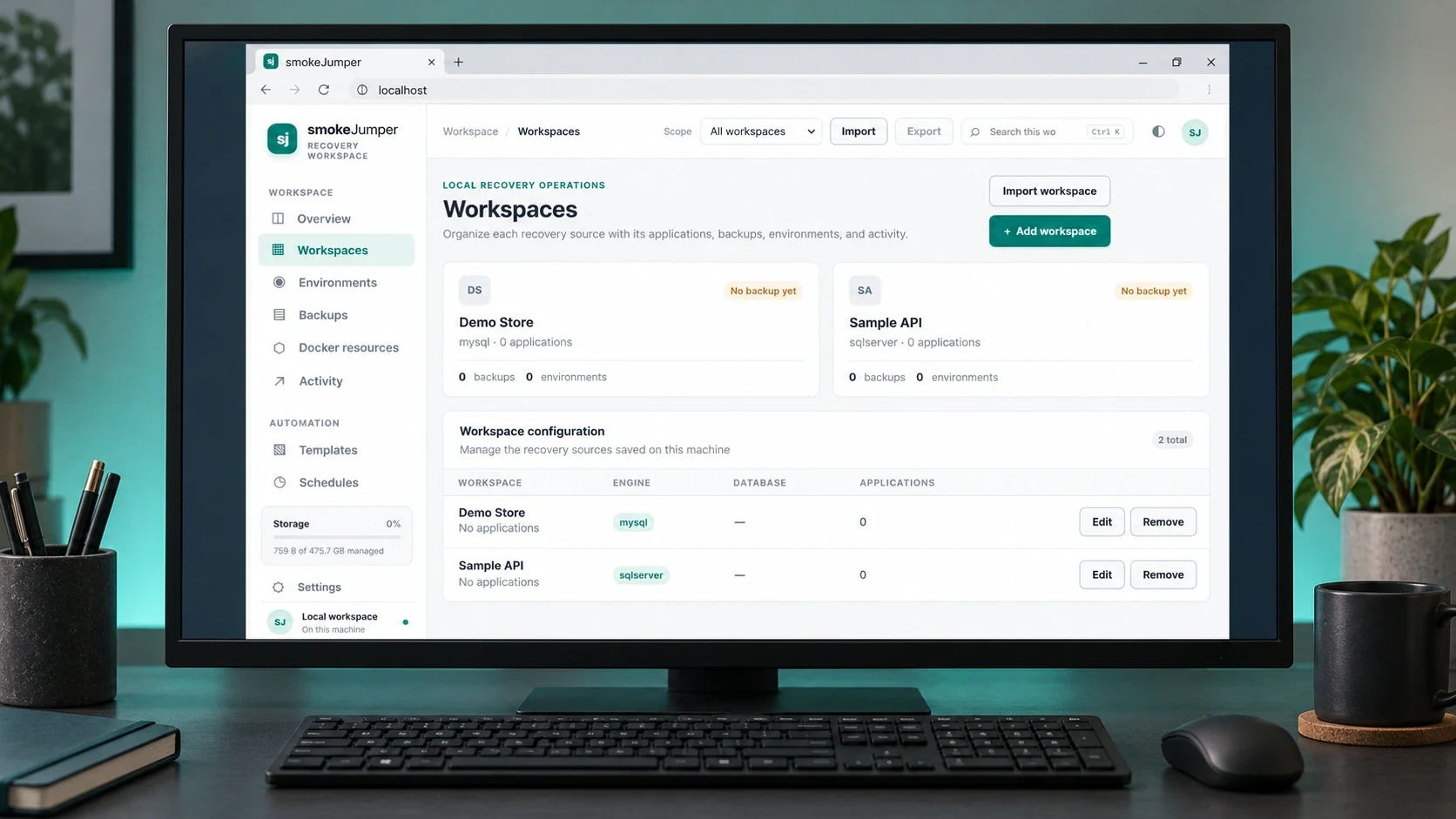
Personal projectSmoke Jumper
Smoke Jumper
Apps, databases and Docker environments on Windows
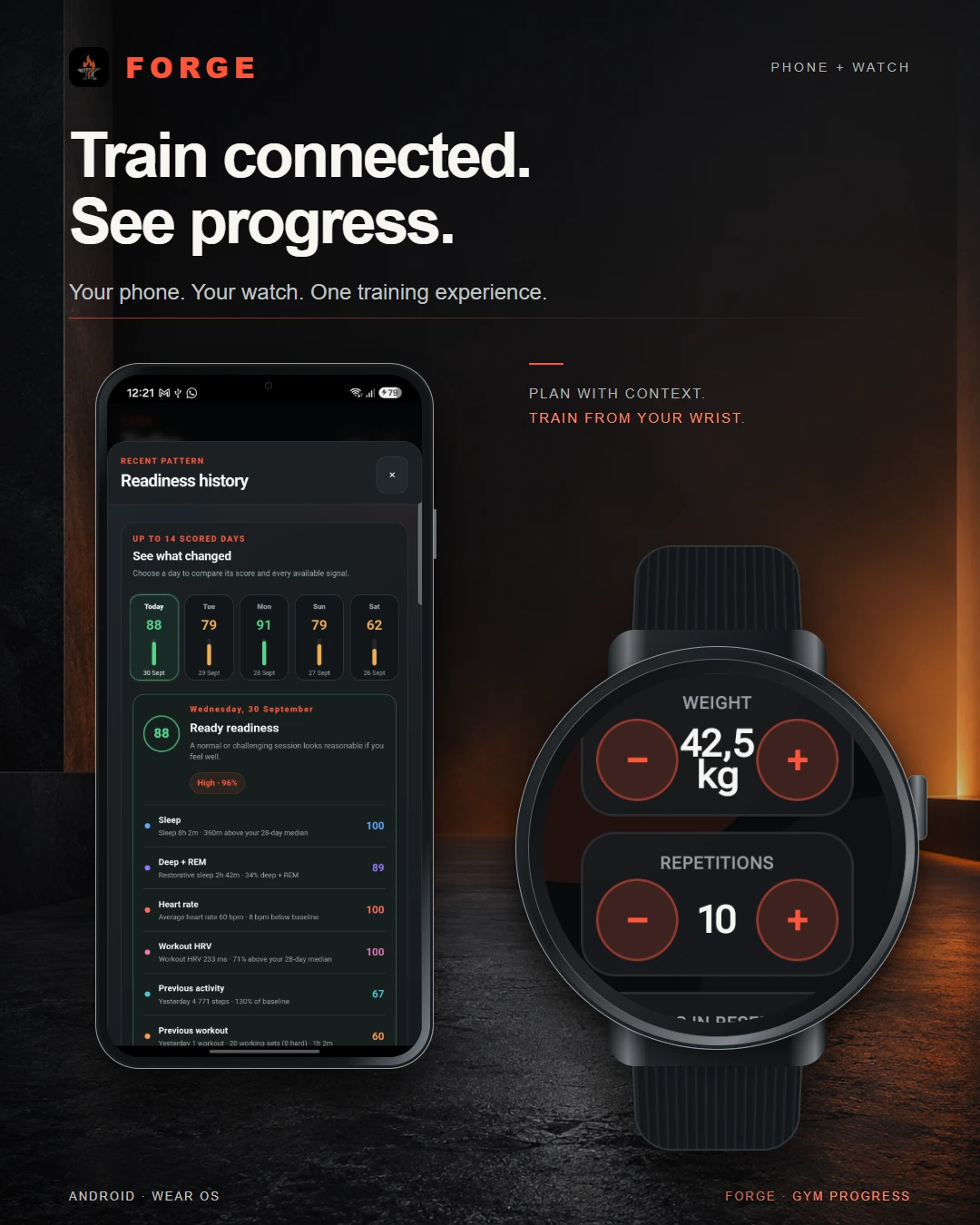
Personal projectForge
Forge
Training, recovery & progress
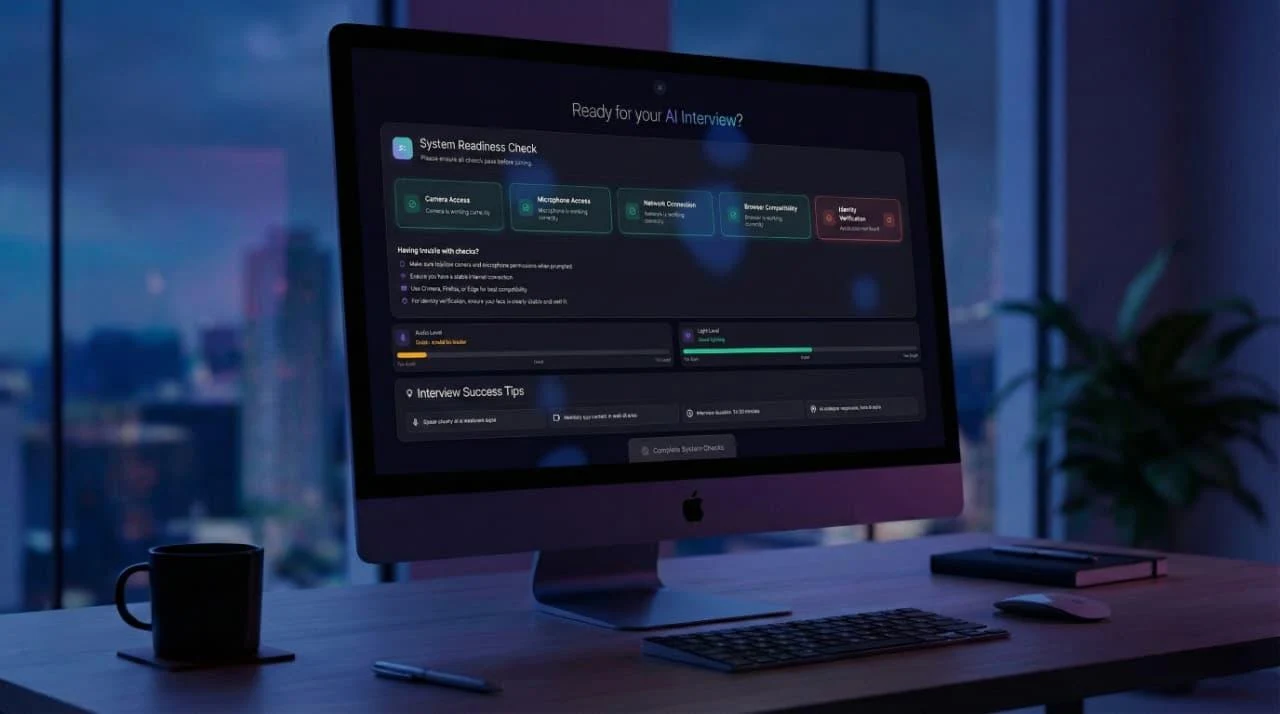
Dynamic Data TechnologiesTwenty4Hire
Twenty4Hire
AI-assisted recruitment platform
The CodesmithsK2.Maui
K2.Maui
Android client for OpenClaw

Dynamic Data TechnologiesMeetapp
Meetapp
Meeting preferences & group dynamics