On this page
I built TeleDesk because I wanted a straightforward way to reach another machine. Sometimes that means checking a build on a PC, helping someone from my phone, or sending a file without opening a remote desktop first. I wanted the application to remember the device I had already selected instead of asking me for its code again at every step.
TeleDesk now connects Windows PCs and Android devices. Version 1.0.5 brings the connection hub, saved-device cards, file actions and update settings into a more coherent workflow. The Windows EXE and signed Android APK are available from the same project page.
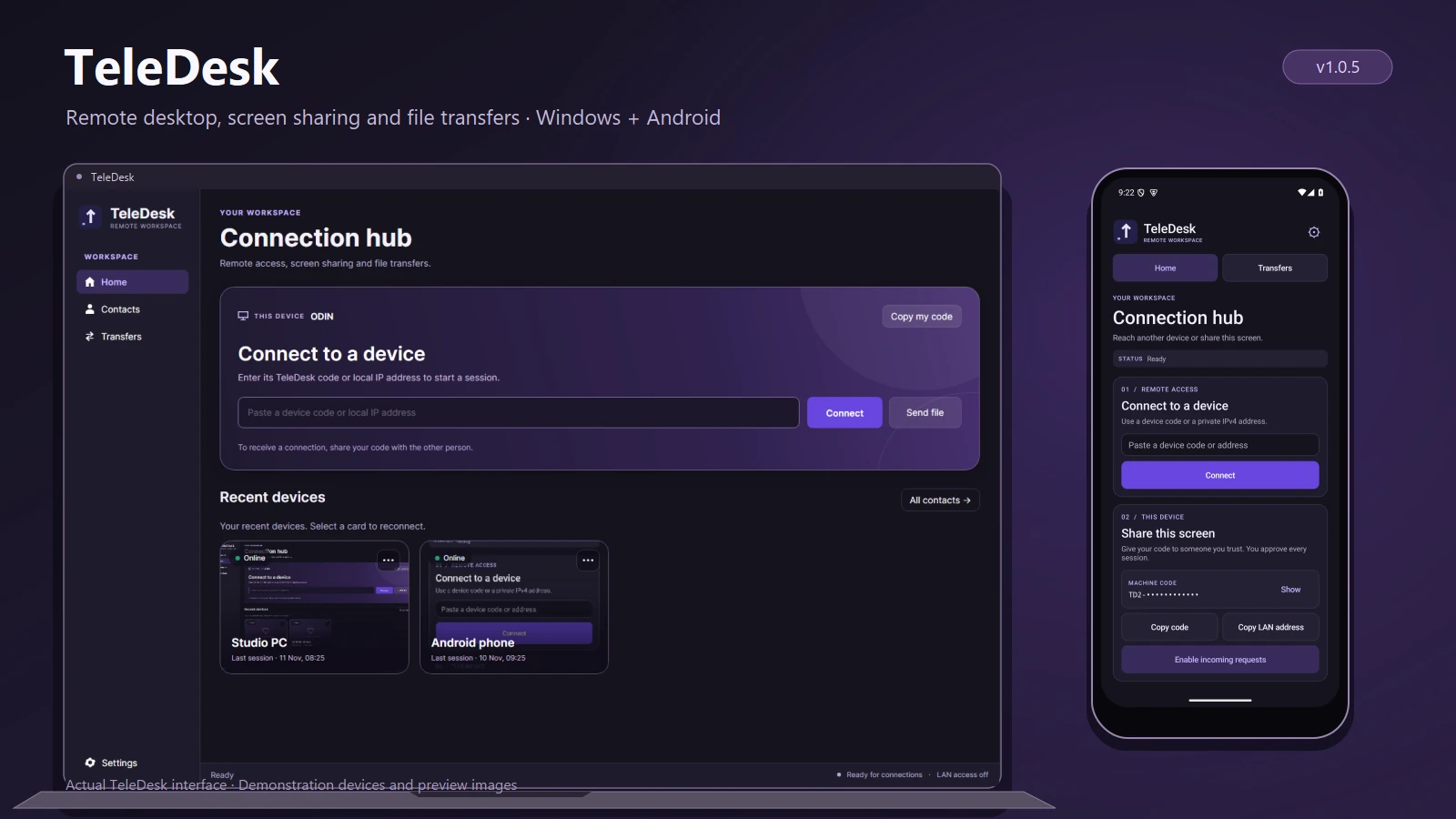
Current app captures in a product mockup. The screenshots use demonstration devices, presence states and preview images; Android is shown in an emulator.
One address, two useful actions
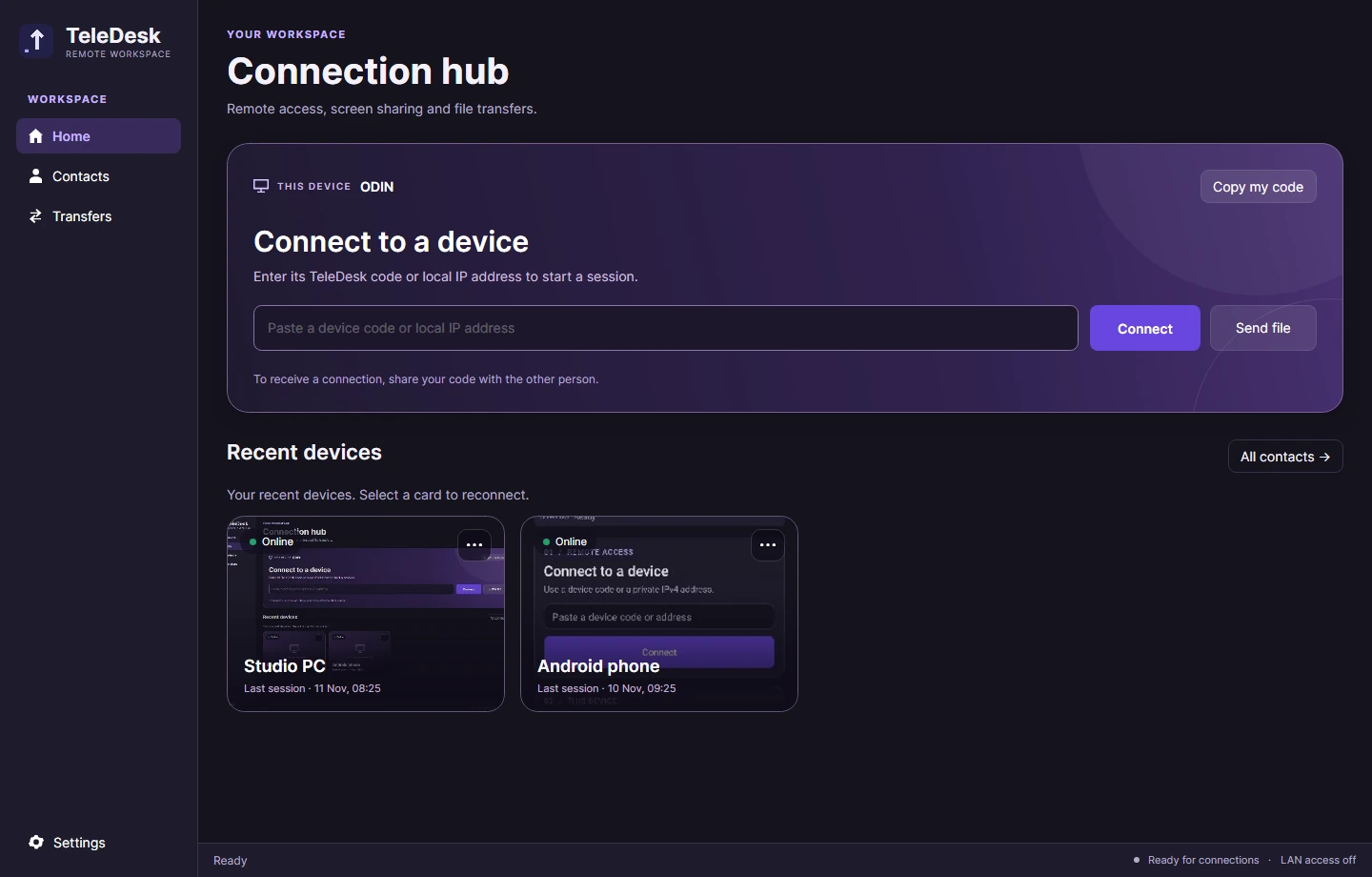
The Windows connection hub has one place to enter a device code or a local IP address. Connect starts a remote session. Send file, beside it, uses that same address and opens the file picker. There is no reason to paste an address into one page and then type it again somewhere else.
This PC’s name and Copy my code are part of the same panel. That covers both sides of a support call: connect to the other device, or give someone the code they need to request access to mine. Connection readiness, LAN availability and task messages sit in the bottom status bar.
Saved devices should behave like devices
Home shows recent devices; Contacts holds the saved list. Each device is a clickable card. Selecting the card connects, so it does not need a second Connect button competing with the name and preview.
The background is the last screen received during a previous session, cached locally on the viewing PC. It is a reminder of the machine I was using, not an always-on view of somebody else’s screen. A new device shows a placeholder, and Clear screen preview removes the stored image.
The card menu includes Send file, Edit contact and Remove contact. Sending from there carries the saved address straight into the file workflow. Removing a contact also removes its unattended-access permission on that receiving PC.
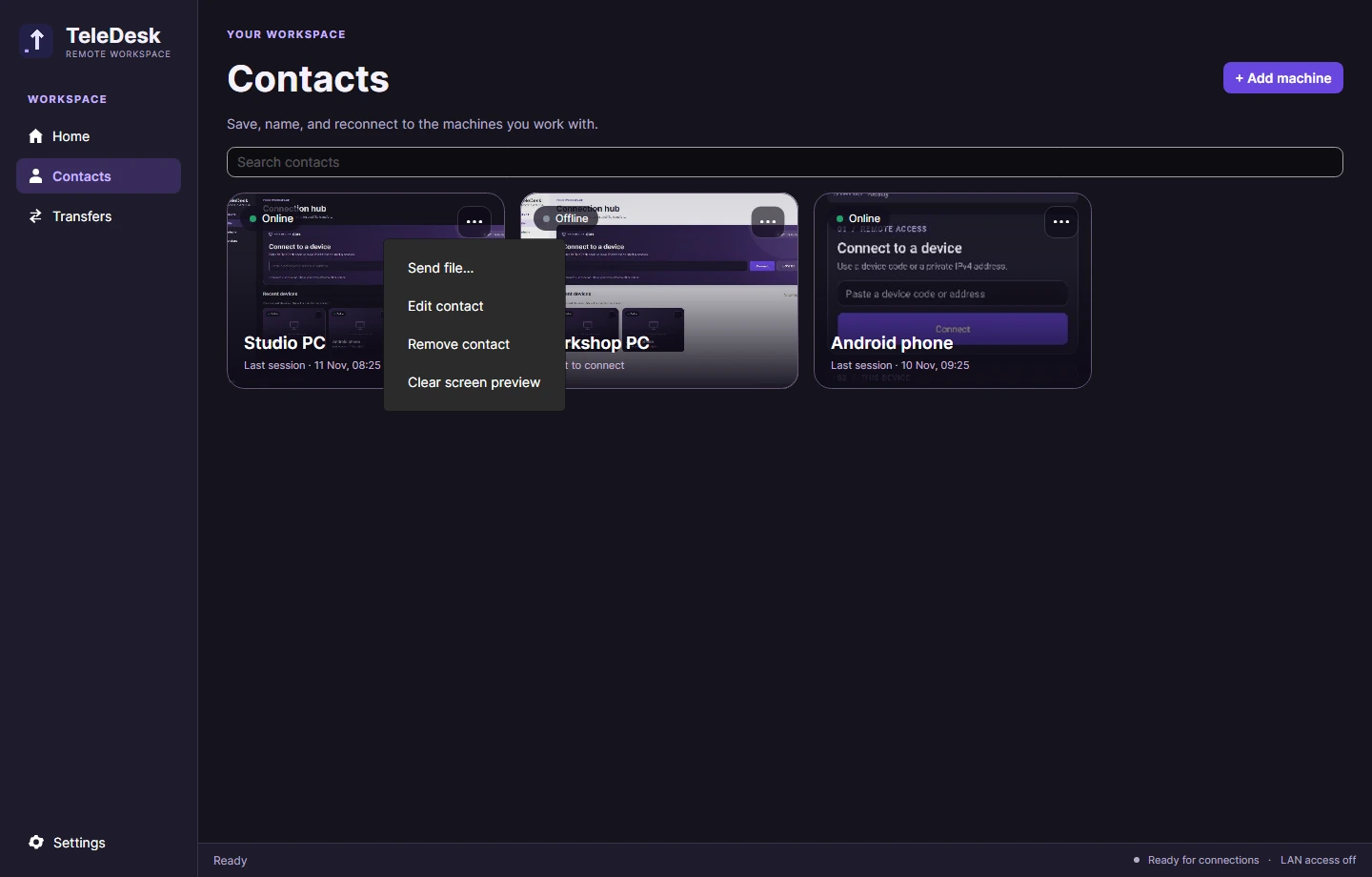
Availability is separate from the preview. A dot and label report online, offline or unknown status, with background checks about every 30 seconds. An unavailable matchmaking service or an older remote version can produce an unknown result. Online means the device was discoverable; it does not promise that a network path or access approval will succeed.
Windows and Android have different roles
On Android, I can enter a Windows PC’s code and control an approved session. The viewer supports tapping, dragging, right-clicking, scrolling and typing with a US keyboard layout. Windows can approve view-only access or allow keyboard and mouse input.
In the other direction, Windows can view an Android screen after incoming requests are enabled on the phone. The phone user approves the request and then confirms Android’s system screen-sharing prompt. The public APK provides view-only Android sharing. It does not offer unattended phone sharing or Android touch control, and Android may hide protected content.
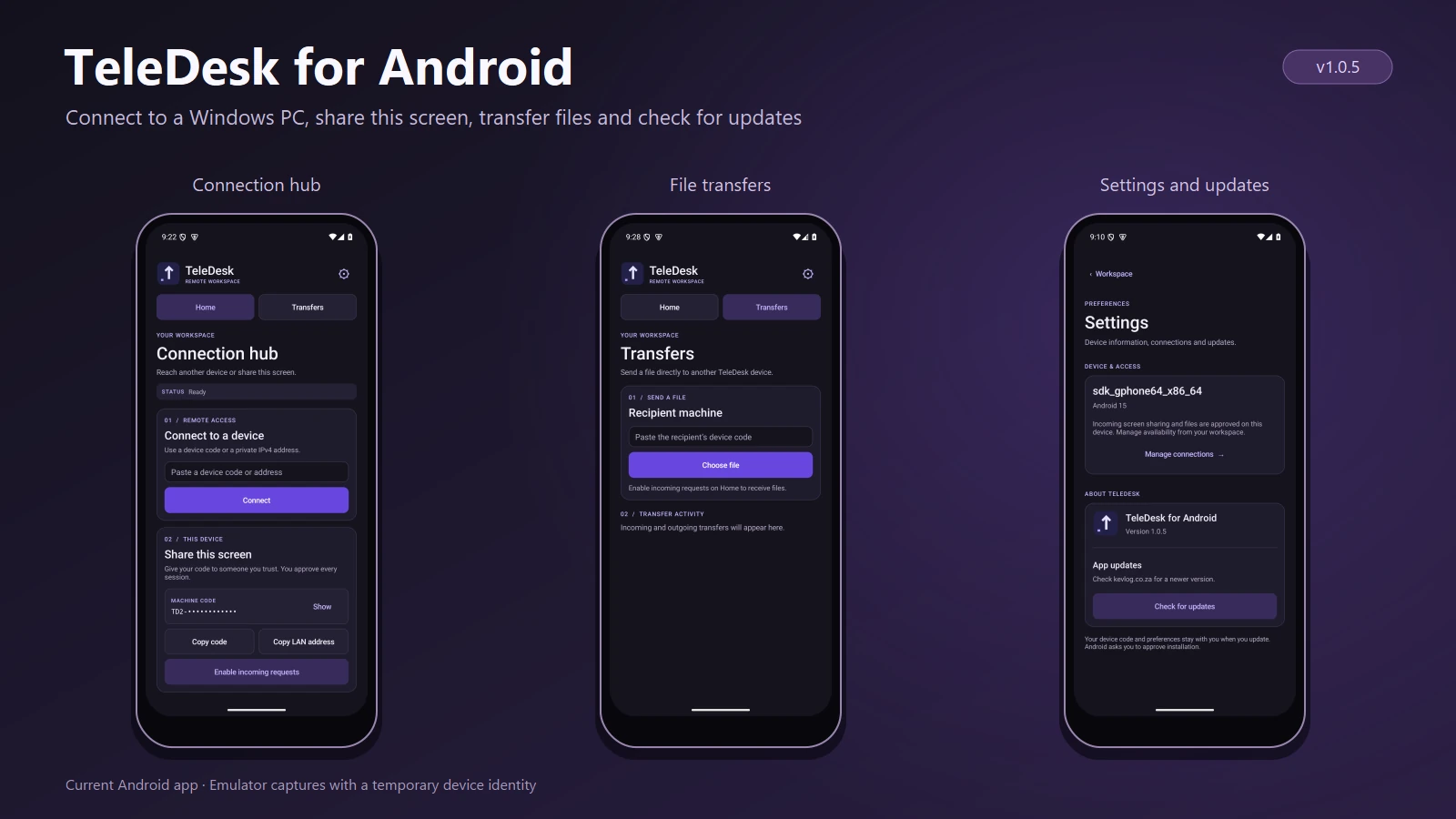
These are current Android emulator captures with a temporary test identity.
Files without a desktop session
The recipient approves a file offer and chooses its destination. Both sides show the size and progress; the Windows transfer view also reports throughput. A compatible active remote session can carry a file over the connection that is already open.
The 1.0.5 Windows workflow makes the common paths shorter: enter an address once and select Send file, or choose the action from a saved device. Transfers remains the place to follow the activity after a file is selected.
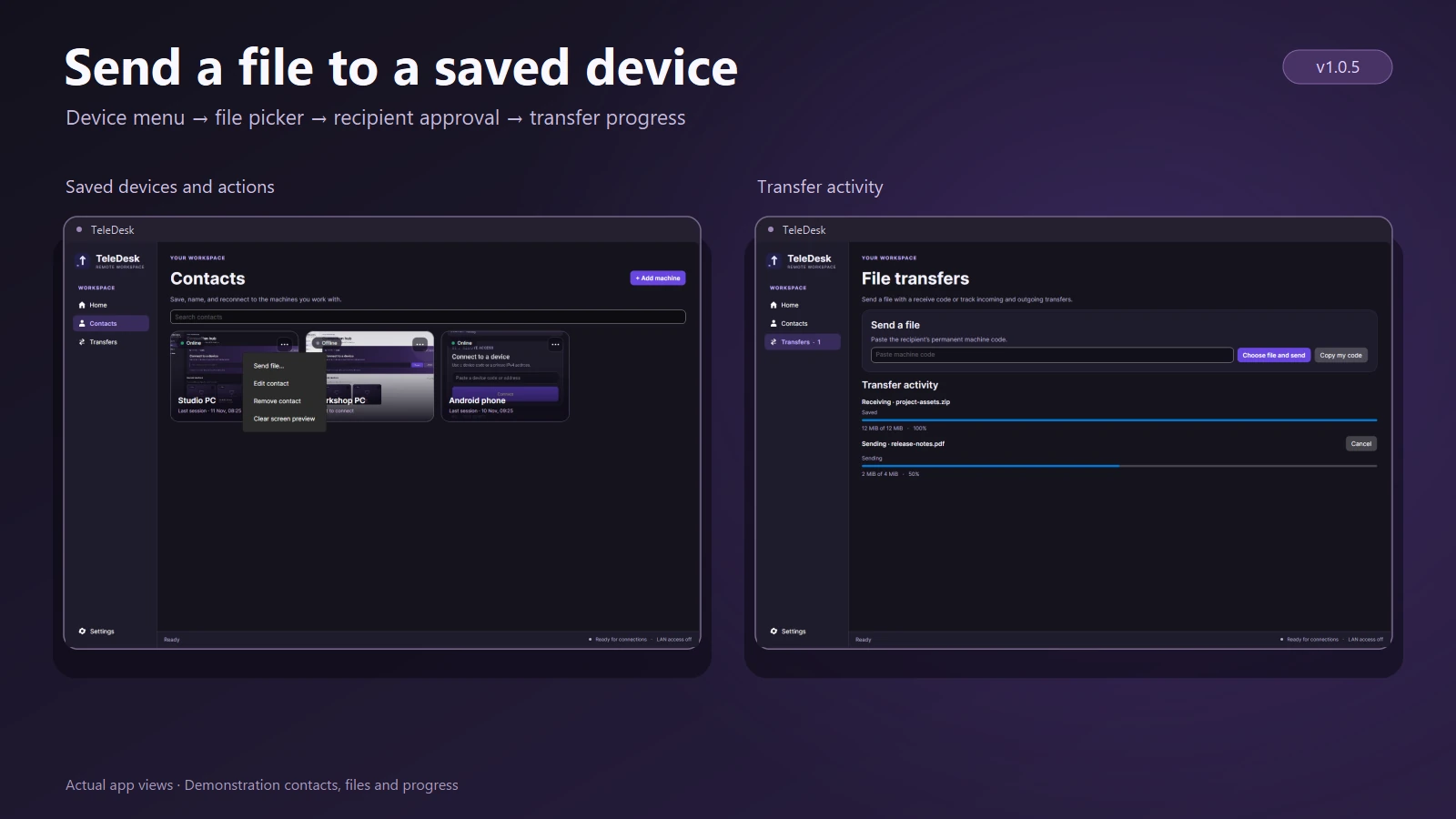
The mockup uses current app views with demonstration filenames and progress.
TeleDesk streams files using 64-bit byte counts rather than loading a whole file into memory. Available space and filesystem limits still matter. Pause/resume and queued offline delivery are not implemented; a cancelled transfer starts again from the beginning.
Keeping screen updates responsive
The Windows host can send changed screen regions instead of encoding a new full-screen image for every small update. Small changes can use lossless patches when they fit the bandwidth budget; larger updates use adaptive JPEG compression, and unchanged frames are skipped.
Those patches have to be composed into the displayed screen. The saved device preview uses that composed image, so a final thumbnail contains the whole screen rather than only the last rectangle that changed. Windows currently captures the primary monitor in the signed-in user’s desktop session.
Installation, the tray and updates
The Windows release is a self-contained EXE. It can run portably or install for the current Windows account, create a Start menu shortcut and start in the notification area at sign-in. Closing the main window leaves TeleDesk running in the tray. Verified contacts can be granted unattended access while the app is running in that signed-in session.
Windows Settings now groups appearance, connections, installation/startup and version information. Android has a Settings page opened from the header gear. Update checks belong there rather than as a spare button at the bottom of the connection workflow.
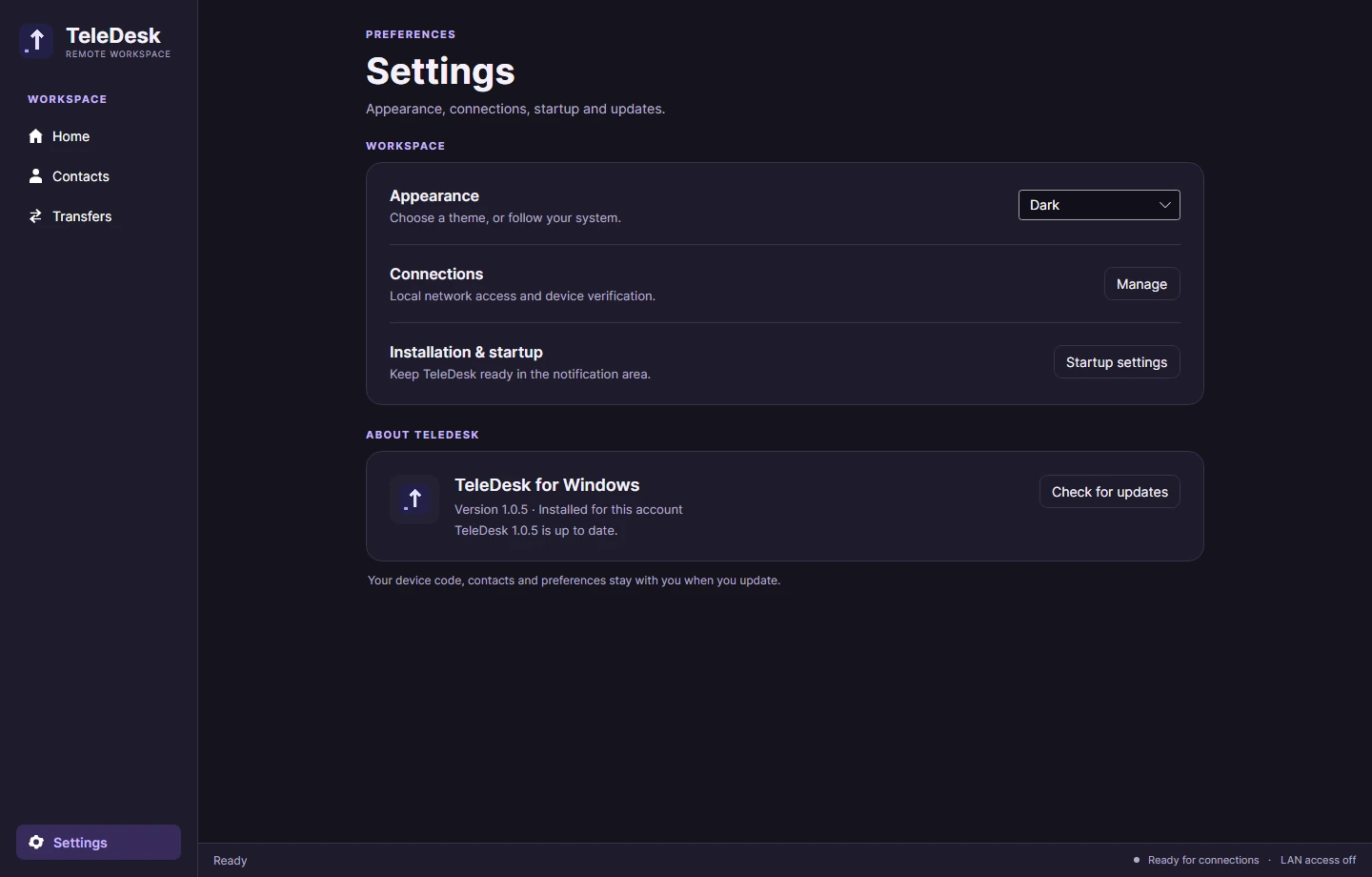
Both platforms read the release manifest from kevlog.co.za and verify the download’s expected size and SHA-256. An installed Windows copy closes, replaces the executable, retains the previous version and restarts. A portable copy saves the new EXE for the user to launch. Android also checks the package and signing certificate, then opens the system installer; the user must approve installation and may need to allow updates from TeleDesk. Older releases need one manual update to gain the update button.
What the transport does, and where it stops
The clients share C#/.NET transport and protocol code. Windows uses Avalonia; Android uses a native interface. Machine-code internet connections use WebRTC and STUN to attempt a direct path, with certificate pinning for the transport. On a local network, a private IPv4 address can be used with fingerprint verification.
There is no TeleDesk account to create. There is also no relay fallback yet: some combinations of routers, firewalls and networks will block the direct connection. Multi-monitor selection, clipboard sharing, resumable transfers and Windows access before sign-in are future work, not features in this release.
The next changes I would prioritise are reliable relay/reconnection support, expiring help links or QR pairing, and clipboard sharing. Those reduce failed first sessions and make the app useful between support calls. A longer feature list would matter less if people could not reliably reach the device they need.
Try TeleDesk 1.0.5
Open the TeleDesk project for Windows and Android downloads and the full screenshot gallery. The Windows release targets x64 PCs; the Android APK supports Android 12 and later on arm64 and x86-64 devices.
THE CONVERSATION
What do you think?
A question, a different approach, or something worth adding.
Loading the conversation…
KEEP EXPLORING
More from the workbench
START A CONVERSATION
Have a problem worth solving?
Let’s talk about your idea, your team, or the work you’ve seen here.