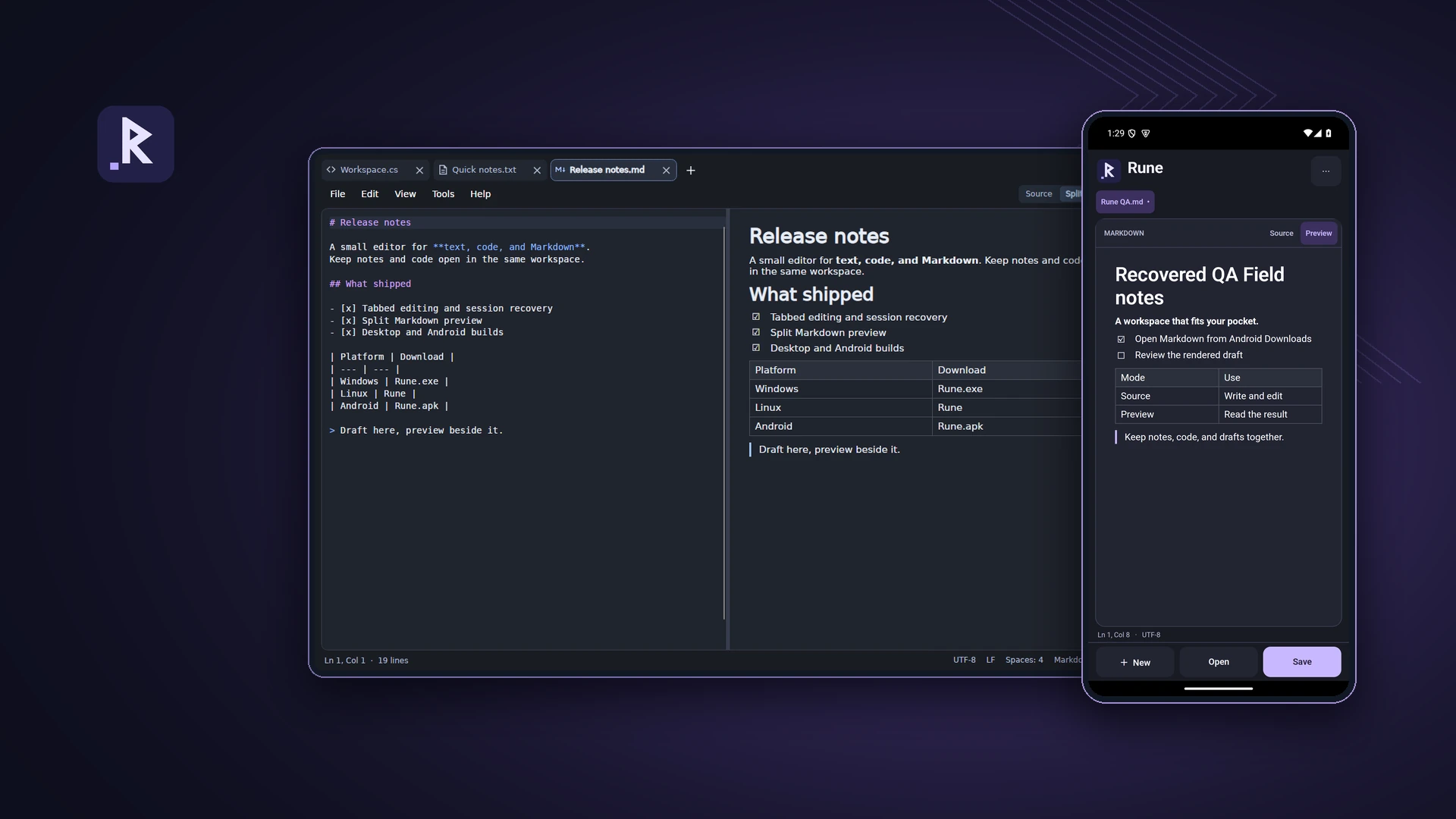
Open a Python file in Rune and the line numbers are there. Open a grocery list and they disappear. I wanted the same editor for both because I often have a note, a script and a README open together. Each tab can override the default, so I can turn on line numbers in a text log without changing how my other notes look.
A save should leave the rest of the file alone
A two-line change can turn into a whole-file diff if an editor quietly converts CRLF to LF or drops a byte-order mark. Rune keeps the file’s encoding and existing line endings unless I ask it to change them. If another process edits the file while I have it open, Rune checks the saved version before replacing it and offers Save As if they differ. On desktop it writes the new contents to a temporary file beside the original before replacing it.
Recovery is separate from saving. A recovered edit comes back in a tab with an unsaved marker, so I can inspect it before it reaches the original file. On Windows 11, a fresh Rune profile also checks Notepad’s cached tabs once. If an unsaved edit can’t be matched safely to its file, it opens in an untitled tab.
Markdown needs a different layout on a phone
On desktop I can watch the rendered README beside the source. On a phone I switch between Source and Preview, so the editor gets the full width. When the keyboard opens, the editor gives up some height and the New, Open and Save buttons move above it.
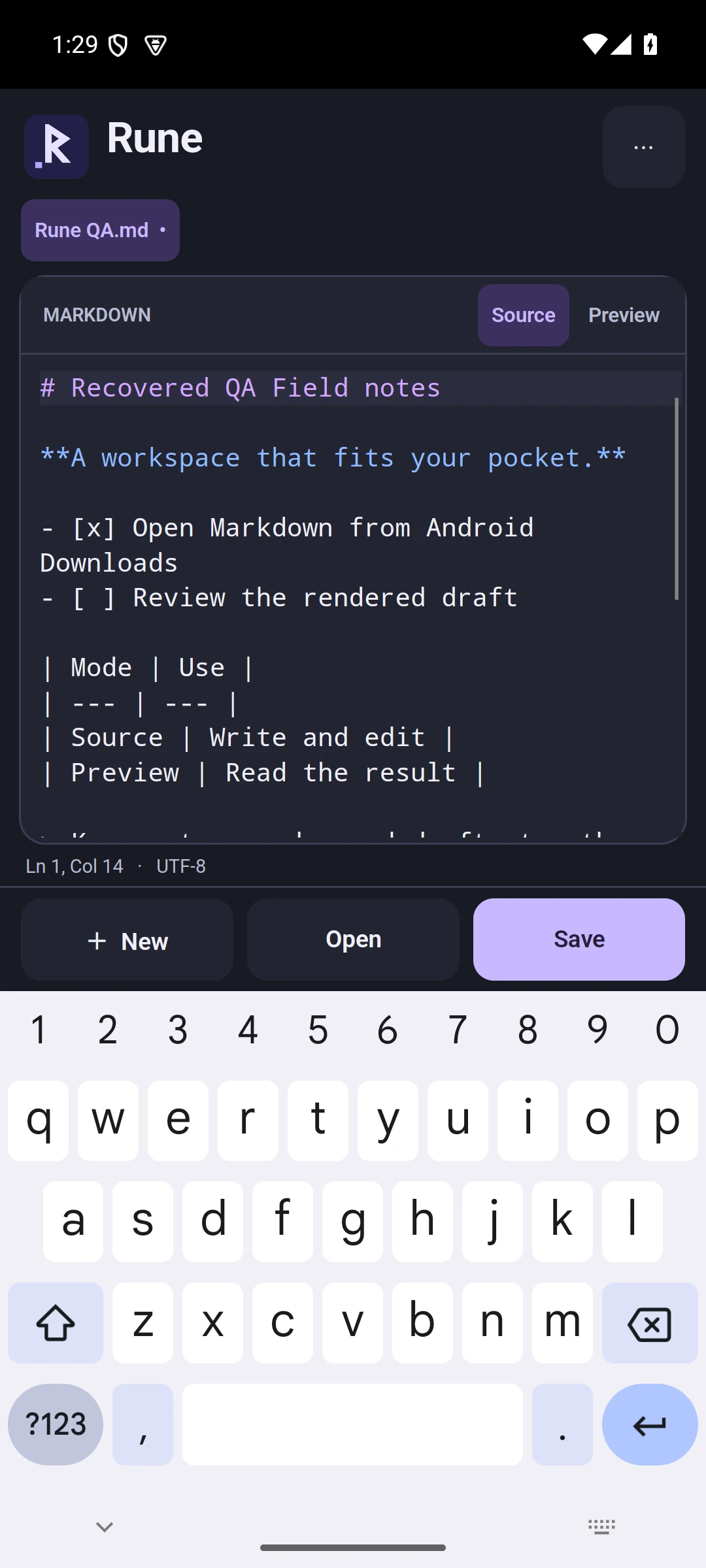
Android file access goes through the system document picker. The provider that supplies a document decides whether it can be overwritten, so the app keeps a local draft and offers Save a copy when it can’t write back safely.
The project page has the desktop builds and an APK for Android 12 or later. To see the difference between the editing modes, open a plain-text note, a source file and a Markdown file in separate tabs.
THE CONVERSATION
What do you think?
A question, a different approach, or something worth adding.
Loading the conversation…
KEEP EXPLORING
More from the workbench
START A CONVERSATION
Have a problem worth solving?
Let’s talk about your idea, your team, or the work you’ve seen here.